This guide walks you through setting up a Hytale server using the files bundled with the official Hytale launcher, and then sharing it to the internet using playit.
Official server guide: Hytale Server Manual
Requirements
- Hytale game launcher installed
- Java 25 (Adoptium recommended)
- A Hytale account
Locate the Dedicated Server Files
The dedicated server is included with the Hytale launcher installation. Navigate to the following path for your operating system:
Windows
%appdata%\Hytale\install\release\package\game\latest
Linux
$XDG_DATA_HOME/Hytale/install/release/package/game/latest
macOS
~/Application Support/Hytale/install/release/package/game/latest
This directory should contain HytaleServer.jar and an Assets.zip file in the parent directory.
Start the Hytale Dedicated Server
- Open a terminal or command prompt inside the server directory.
- Run the following command:
java -jar HytaleServer.jar --assets ../Assets.zip
The server will start and prompt you for authentication if this is your first run.
Authorize the Server
To authorize the server with your Hytale account, enter the following command into the server console:
/auth login device
Follow the on-screen instructions to complete device authorization using your Hytale account.
Once authorized, the server will be fully functional.
If you don’t want to authorize your device every time you start the server (spoiler, most people don’t) you can run this command:
/auth persistence Encrypted
This makes it keep the authorization token in an encrypted file in the server.
Share the Server Using playit
Create a playit Agent
- Create a new agent
- Install and start the agent on the same machine as your Hytale server
Create a Tunnel
-
Create a new tunnel
-
Select the tunnel type:
- Hytale (game)
-
The default port is:
5520/UDP
playit provides a predefined tunnel type for Hytale — use this instead of manually configuring ports.
Connecting to the Server
Players can connect to your server using either:
- You can find it in your tunnel information

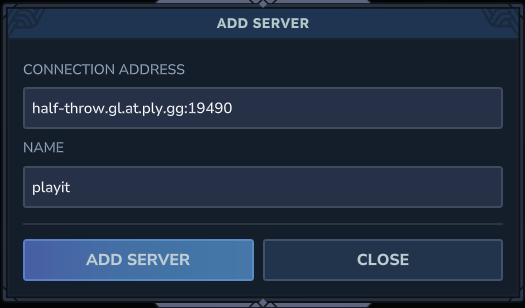
From the screenshot, your address is half-throw.gl.at.ply.gg:19490. For you, this address will be different.
Done
You and your players can then enter this address in Hytale to connect