Setting Everything Up
Assuming you already own Project Zomboid on Steam, you already have access to the dedicated server software.
- Open your Steam Library
- Search for Project Zomboid (the server is usually hidden until searched)
- Install Project Zomboid Dedicated Server
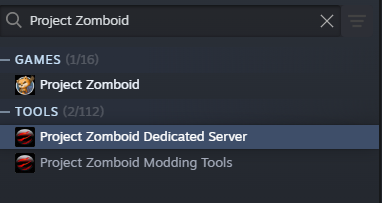
Verify the Server Runs
After installing the server:
- Do not launch it from Steam
- Right‑click Project Zomboid Dedicated Server
- Select Manage → Browse local files
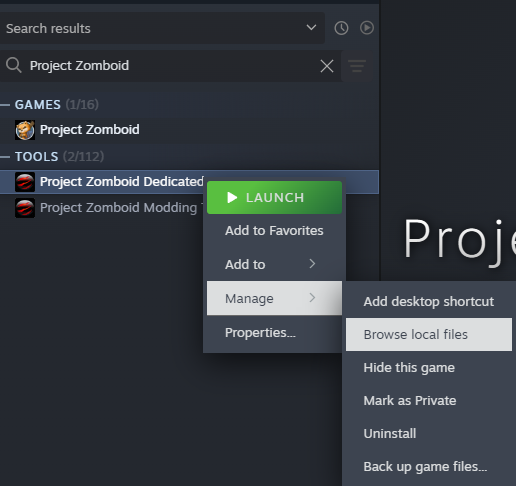
The server directory will look similar to this:
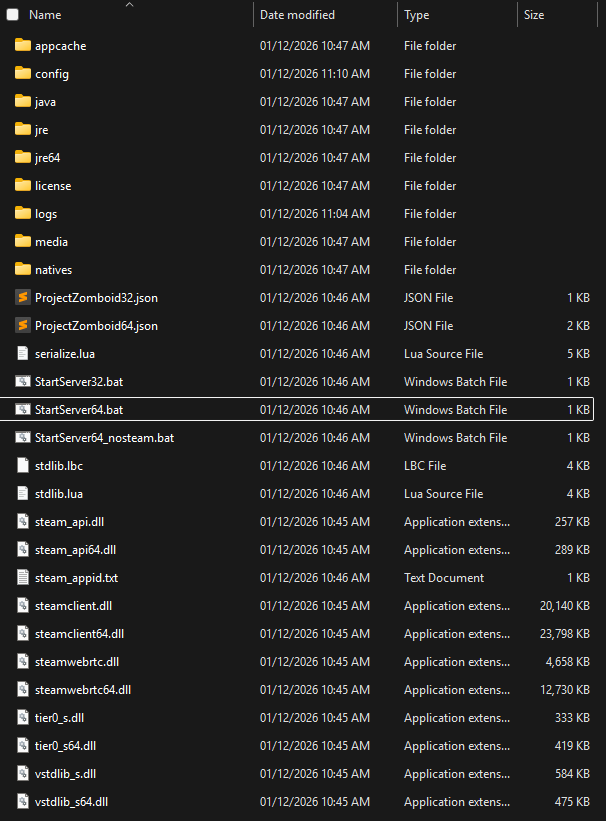
Both the 32‑bit and 64‑bit versions work:
StartServer32.batStartServer64.bat
Double‑click either file to start the server once. After it finishes initialization, you can close it.
Using playit.gg to Share the Server
Create and claim a new playit.gg agent, then create your first tunnel.
Project Zomboid normally uses the following ports:
16261(main port)16262(secondary UDP port)
We will adjust these to work with playit.gg.
Create the Tunnel
Create and configure your tunnel as follows:
- Type: Project Zomboid (game)
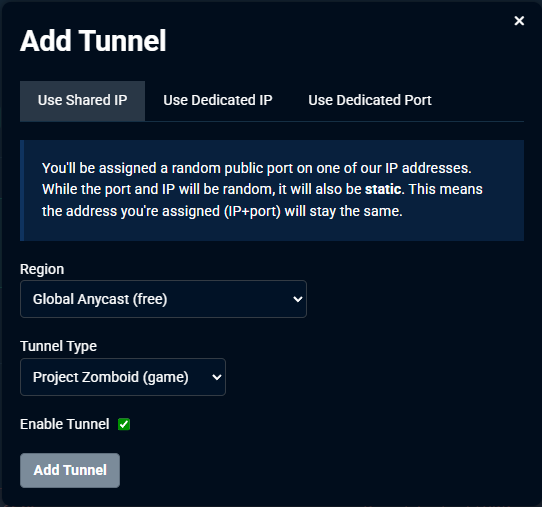
At this point, the tunnel will be active, but the game server will not yet be reachable. This is because the local server ports must match the tunnel’s assigned public ports.
Dedicated IP Users
If you are using a dedicated IP from playit.gg:
- You may keep the default ports
- Set the local port to
16261 - No changes to
servertest.iniare required unless you want to modify game rules
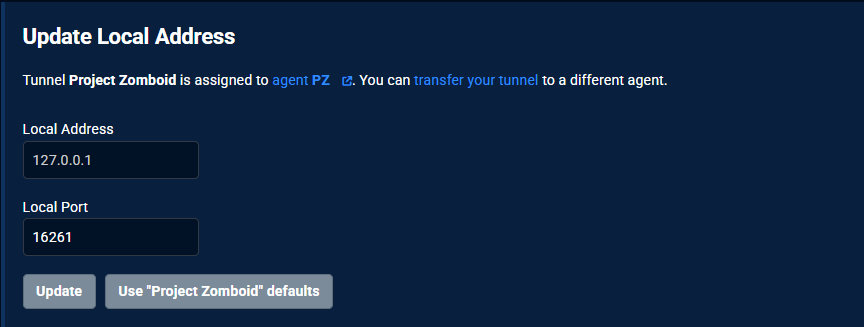
Configure Server Ports
Navigate to your Project Zomboid server configuration folder:
C:\Users\User\Zomboid\Server
Inside, you will find files like:
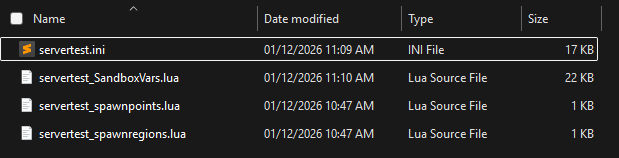
Edit servertest.ini
Open servertest.ini and locate:
DefaultPort=16261
Change this to match the public port assigned by playit.gg.
Example:
DefaultPort=10233

Configure the Second Port
Project Zomboid uses two sequential ports.
If your public port is 10233, the second port will be 10234
In servertest.ini, find:
UDPPort=16262
Change it to:
UDPPort=10234
Save the file.
Connecting to the Server
- Start the Project Zomboid server
- Open your playit.gg tunnel
- Copy the numeric IP address and port
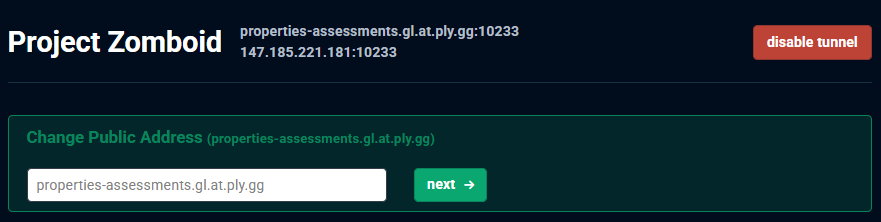
Example:
147.185.221.181:10233
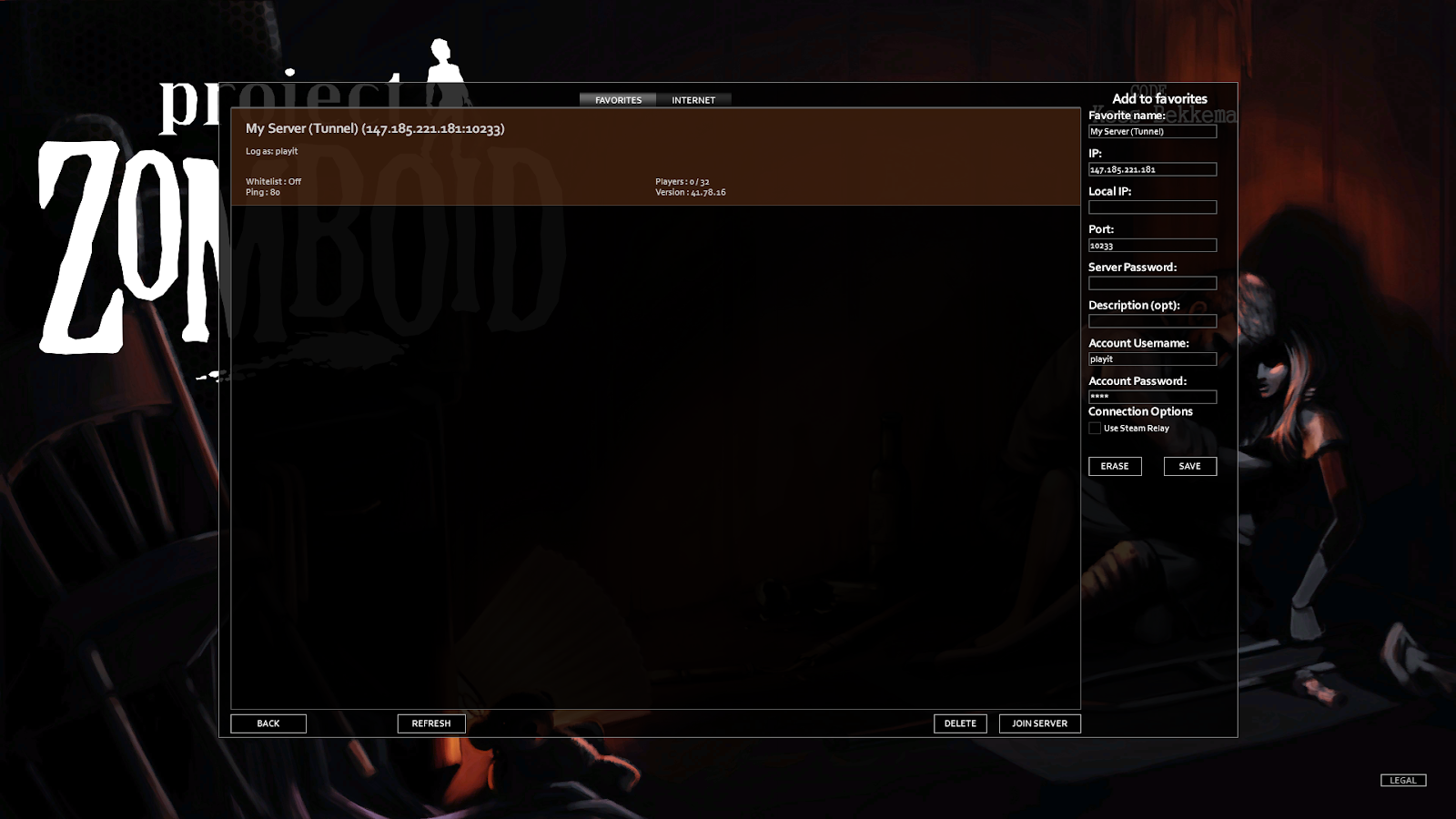
Join in Project Zomboid
- Launch Project Zomboid
- Click Join
- Enter the tunnel IP and port on the right‑hand side
- Under Connection Options, make sure:
Use Steam Relay = unchecked
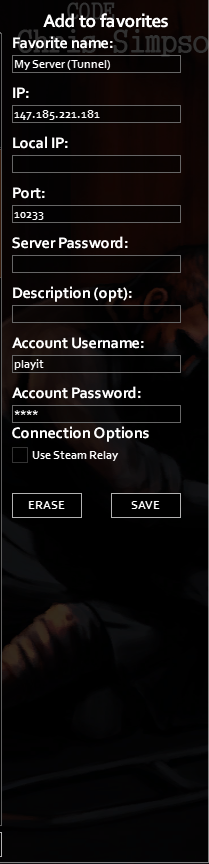
- Click Add
- Select the server from the list
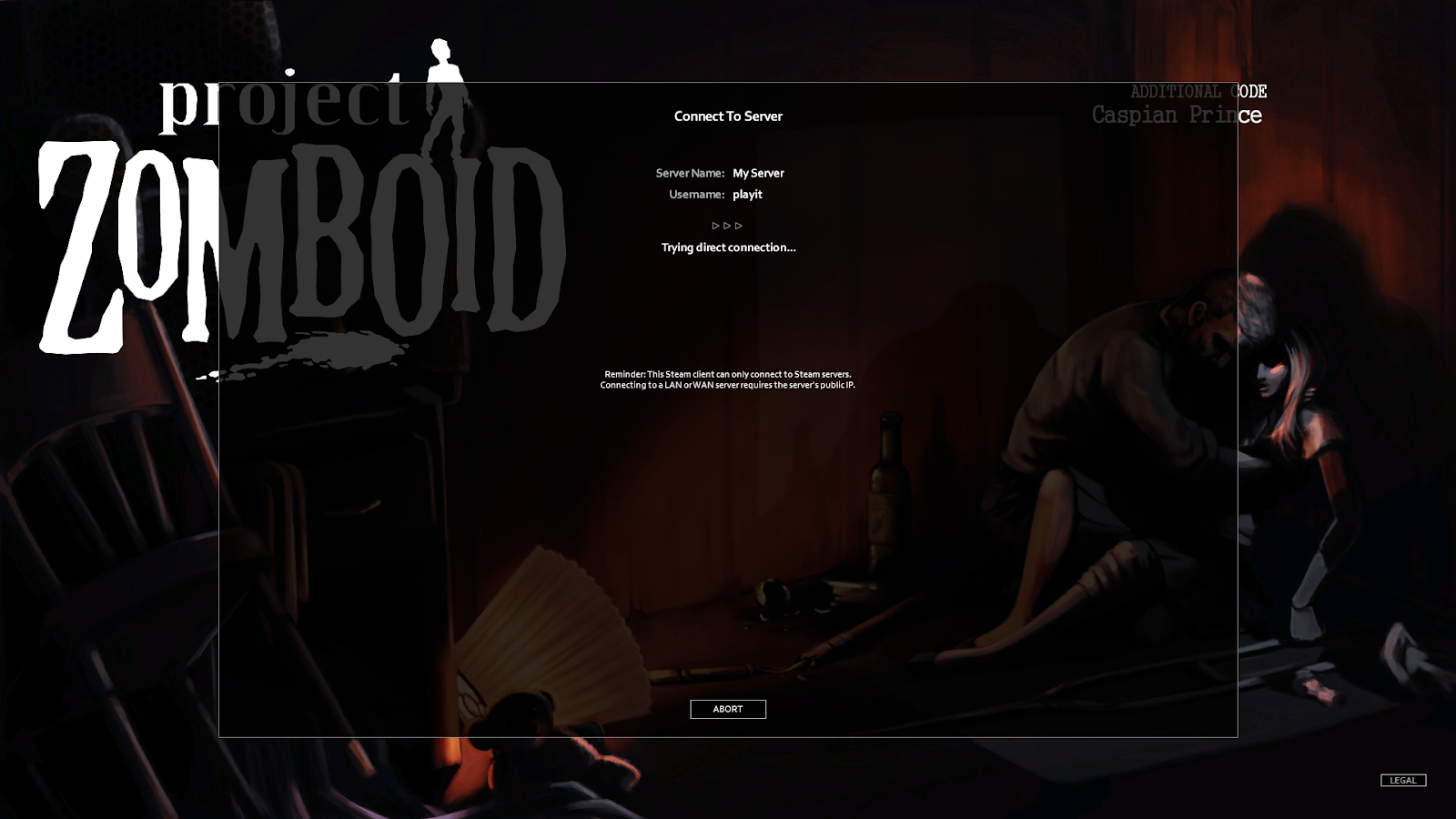
Server Is Live
The game server will now:
- Serve all game assets
- Apply server settings
- Store player data
To modify server settings, see the Project Zomboid Server Wiki .
Troubleshooting
Closed Port Warning

If you see a closed port warning:
- Double‑check that Use Steam Relay is disabled in the server list
- Confirm
DefaultPortandUDPPortmatch the playit.gg tunnel ports
Done
Your Project Zomboid server should now be up and shared using playit.