Installing SteamCMD
Server
For this to work, we will be using SteamCMD - here’s how to set it up. We will be using Ubuntu Server 26.04 for this portion of the guide. From your terminal, enter these commands - to install SteamCMD, the multiverse repository and x86 packages must be enabled.
Ubuntu
sudo add-apt-repository multiverse; sudo dpkg --add-architecture i386; sudo apt update
sudo apt install steamcmd
For other distributions, please refer to the instructions for your specific setup
Setup
You need a place to store the server - create a new directory, for example barotrauma
mkdir ~/barotrauma
Start installing the server from SteamCMD using this command:
/usr/games/steamcmd +force_install_dir ~/barotrauma +login anonymous +app_update 602960 validate +quit
This will tell SteamCMD to start installing the barotrauma server inside of ~/barotrauma.
If you get
ERROR! Failed to install app '602960' (Missing configuration), you should try adding+@sSteamCmdForcePlatformType linuxto the command:
/usr/games/steamcmd +@sSteamCmdForcePlatformType linux +force_install_dir ~/barotrauma +login anonymous +app_update 602960 validate +quit
Find the server files
You can do this by typing in ls and then using cd to move your console to this folder. (.dll files excluded from output)
You can run ls again inside of the folder to view the server’s contents.
server@playit-gg:~$ ls
barotrauma
server@playit-gg:~$ cd barotrauma/
server@playit-gg:~/barotrauma$ ls
 Barotrauma                           EosInterface.Implementation.Linux.deps.json   OpenALSoft_LICENSE            libSDL2-2.0.so.0                                    libmscordaccore.so
 Barotrauma.deps.json                 EosInterface.Implementation.Linux.pdb         ServerLogs                    libSystem.Globalization.Native.so                   libmscordbi.so
 Barotrauma.pdb                       EosInterface.pdb                              SharpFont.NetStandard.pdb     libSystem.IO.Compression.Native.so                  libopenal.1.dylib
 Barotrauma.runtimeconfig.json        Facepunch.Steamworks.Posix64.pdb              TempMods_Upload               libSystem.Native.so                                 libopenal.so.1
 BarotraumaCore.pdb                   Facepunch.Steamworks.Posix64.xml              XNATypes.pdb                  libSystem.Net.Security.Native.so                    libsteam_api64.dylib
 Concentus.NetStandard.pdb            Farseer.NetStandard.pdb                      'bonus content'                libSystem.Security.Cryptography.Native.OpenSsl.so   libsteam_api64.so
 Concentus_LICENSE                    GameAnalytics.NetStandard.deps.json           changelog.txt                 libclrgc.so                                         open_bonus_lin.sh
 Content                              GameAnalytics.NetStandard.pdb                 config_player.xml             libclrjit.so                                        open_bonus_osx.sh
 Data                                 Hyper.ComponentModel.NetStandard.pdb          createdump                    libcoreclr.so                                       open_bonus_win.bat
 DedicatedServer                      Icon.ico                                      daedalic_privacypolicy.txt    libcoreclrtraceptprovider.so                        serversettings.xml
 DedicatedServer.deps.json            Lidgren.NetStandard.pdb                       hintmanager.xml               libfreetype6.so                                     steamapps
 DedicatedServer.exe                  LocalMods                                     installscript_bonus.vdf       libhostfxr.so                                       webm_mem_playback_x64.so
 DedicatedServer.pdb                  MonoGame.Framework.Linux.NetStandard.pdb      libEOSSDK-Linux-Shipping.so   libhostpolicy.so                                    x64
 DedicatedServer.runtimeconfig.json   MonoGame.Framework.dll.config                 libSDL2-2.0.0.dylib           liblinux_steam_env.so                               x86
Server configuration
Inside, you will see serversettings.xml. It looks like this:
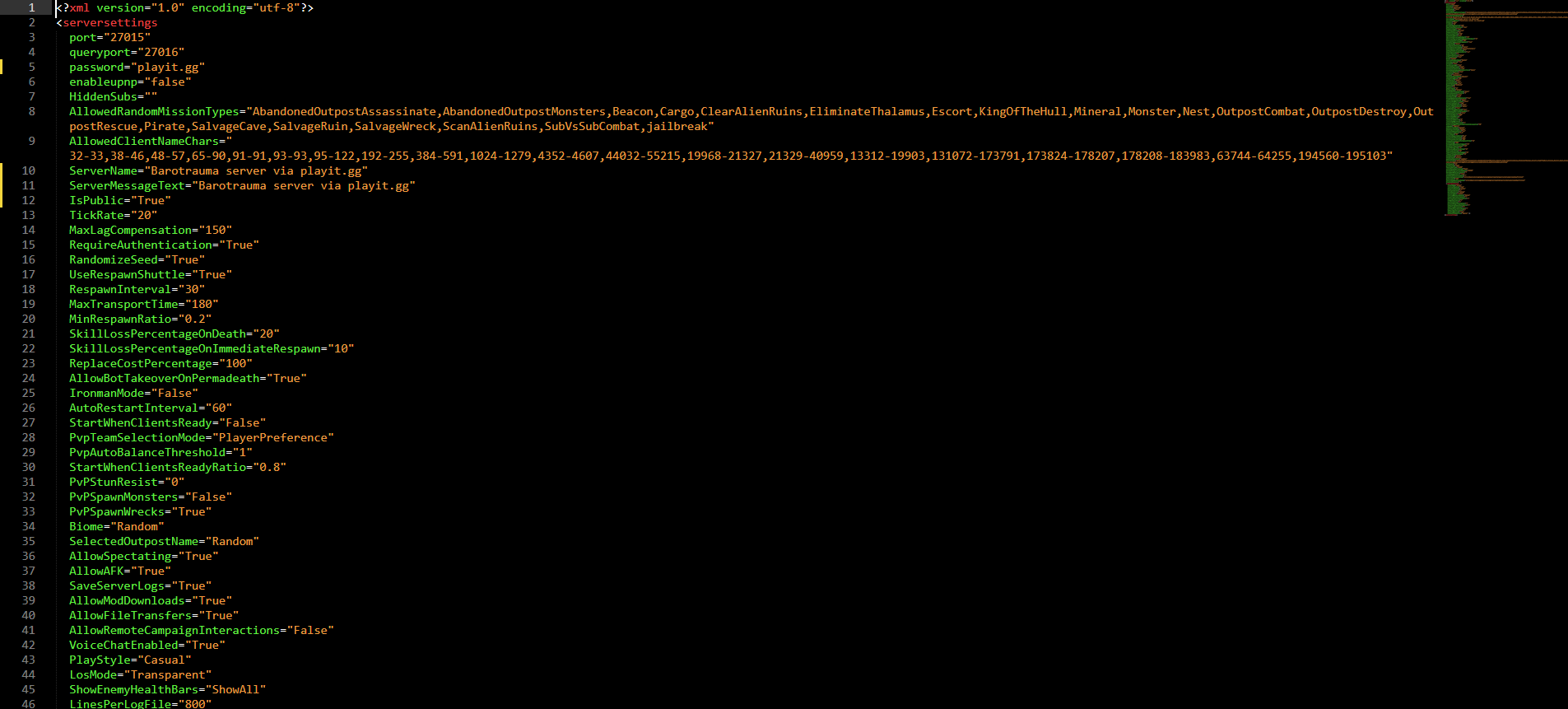
Modify this to your liking. Documentation on this file can be found here:
Serversettings.xml - Official Barotrauma Wiki - [barotraumagame.com]
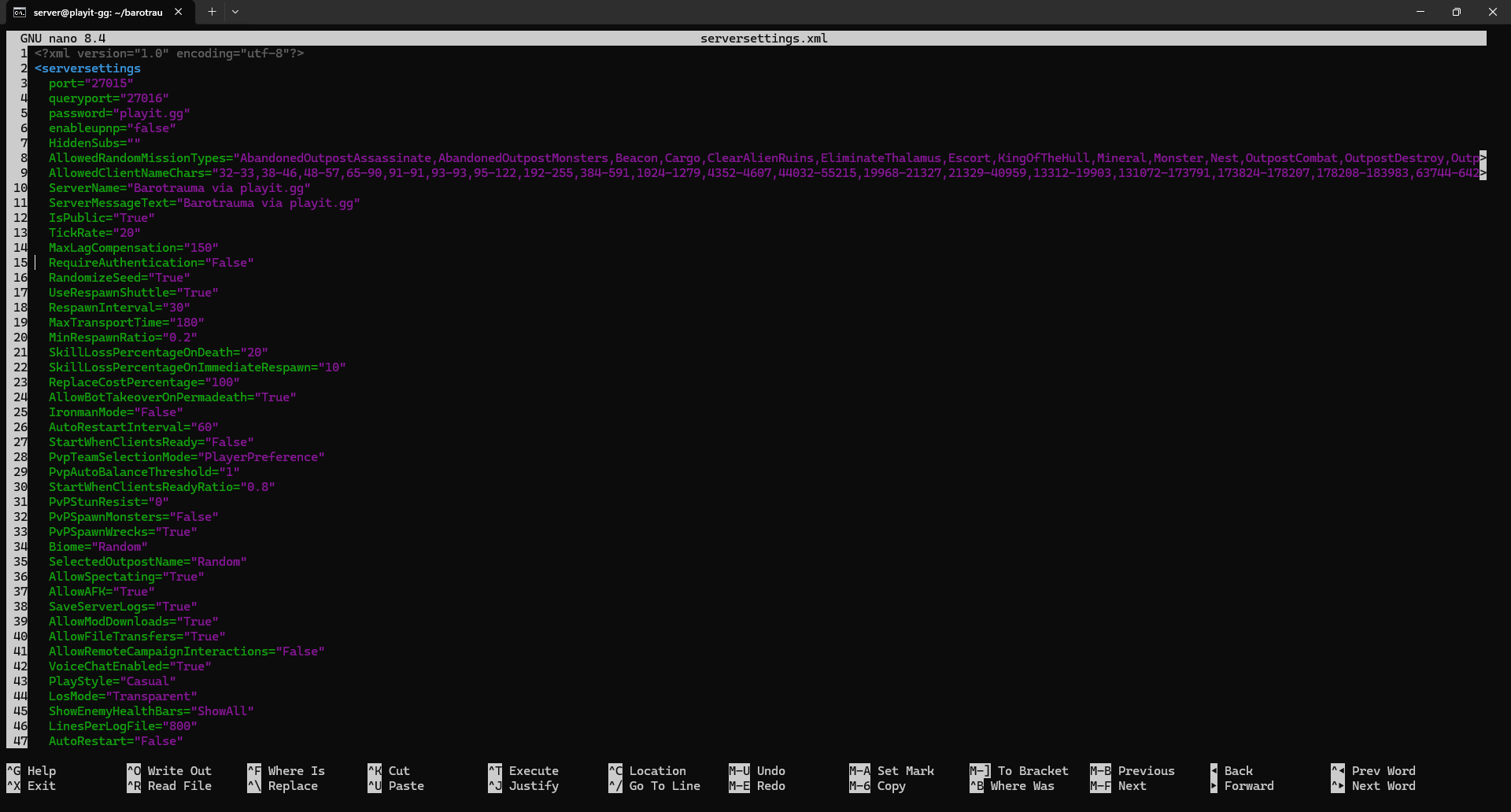
On Linux, you must change RequireAuthentication to False. This can be found on line 15.
sudo nano -l +15 serversettings.xml
Create the tunnel
- Type: UDP
- Port Count: 1
- Local IP: 127.0.0.1
- Port: 27015
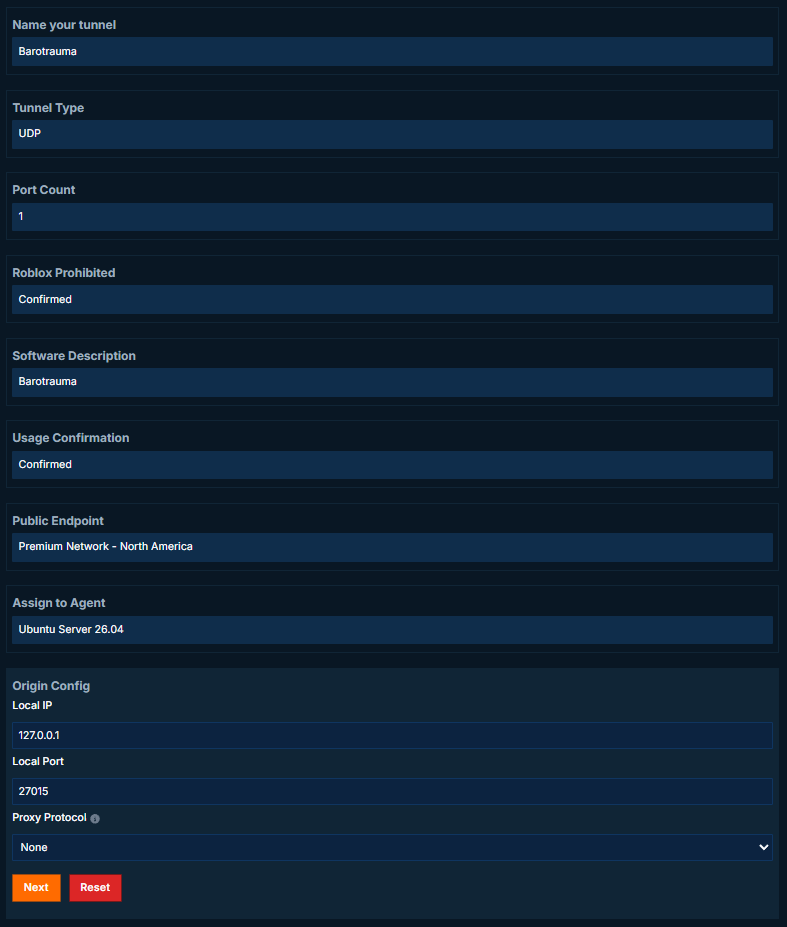
The query port requires 2 ports, but this isn’t required. The local port is
27016.
Starting the server
Inside, you will find DedicatedServer. Run this file using sudo ./DedicatedServer
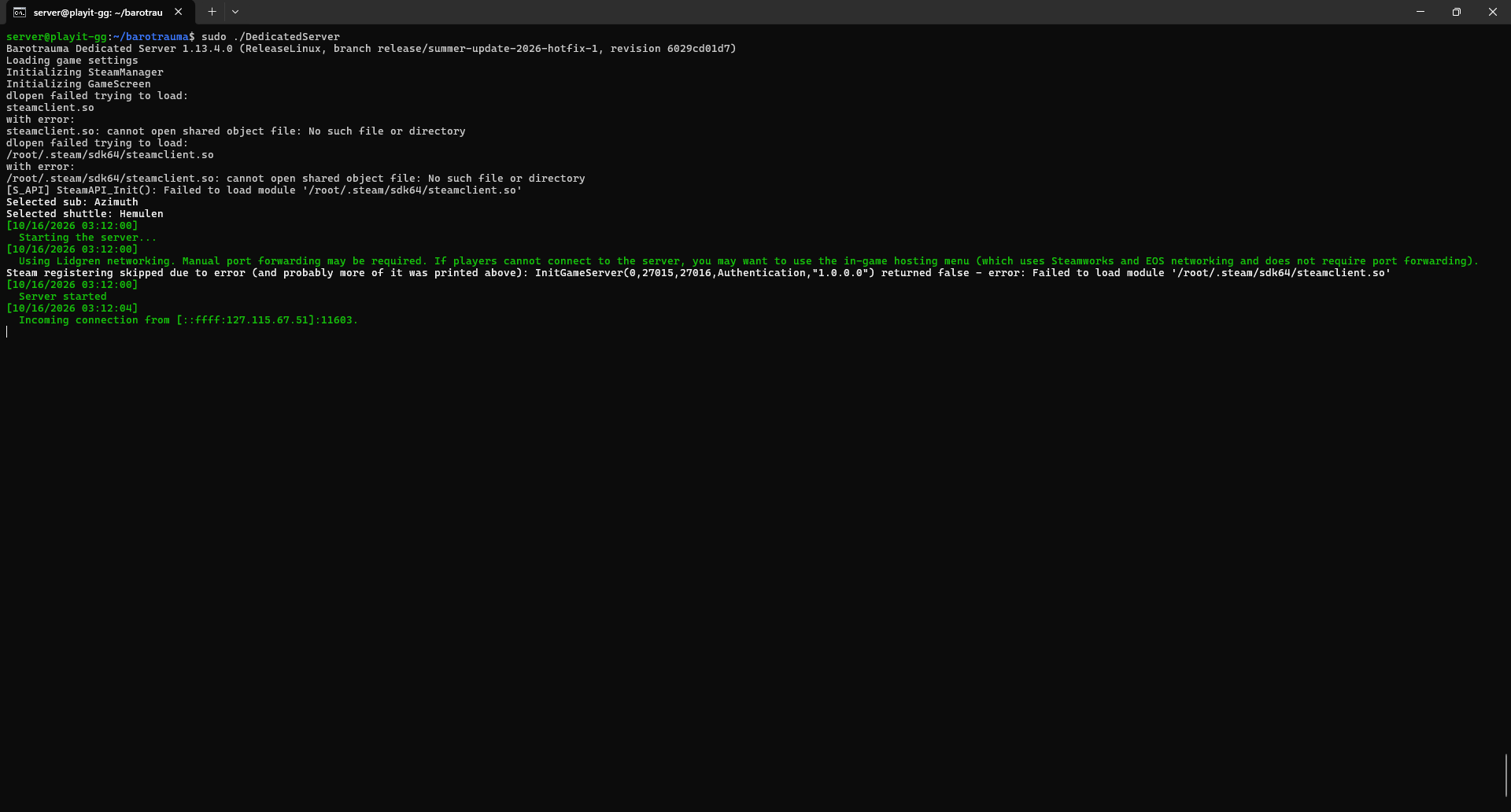
Joining the server
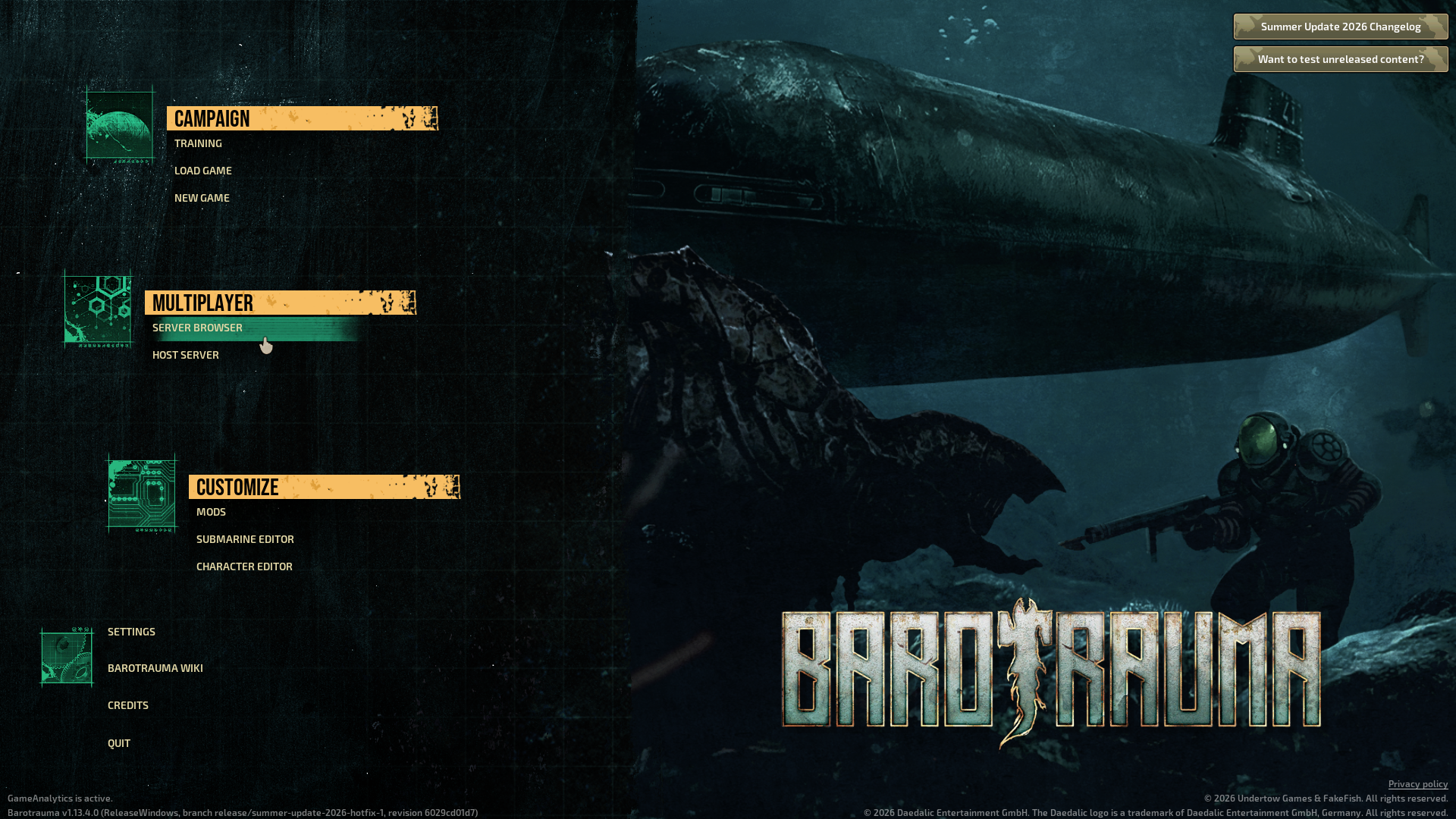
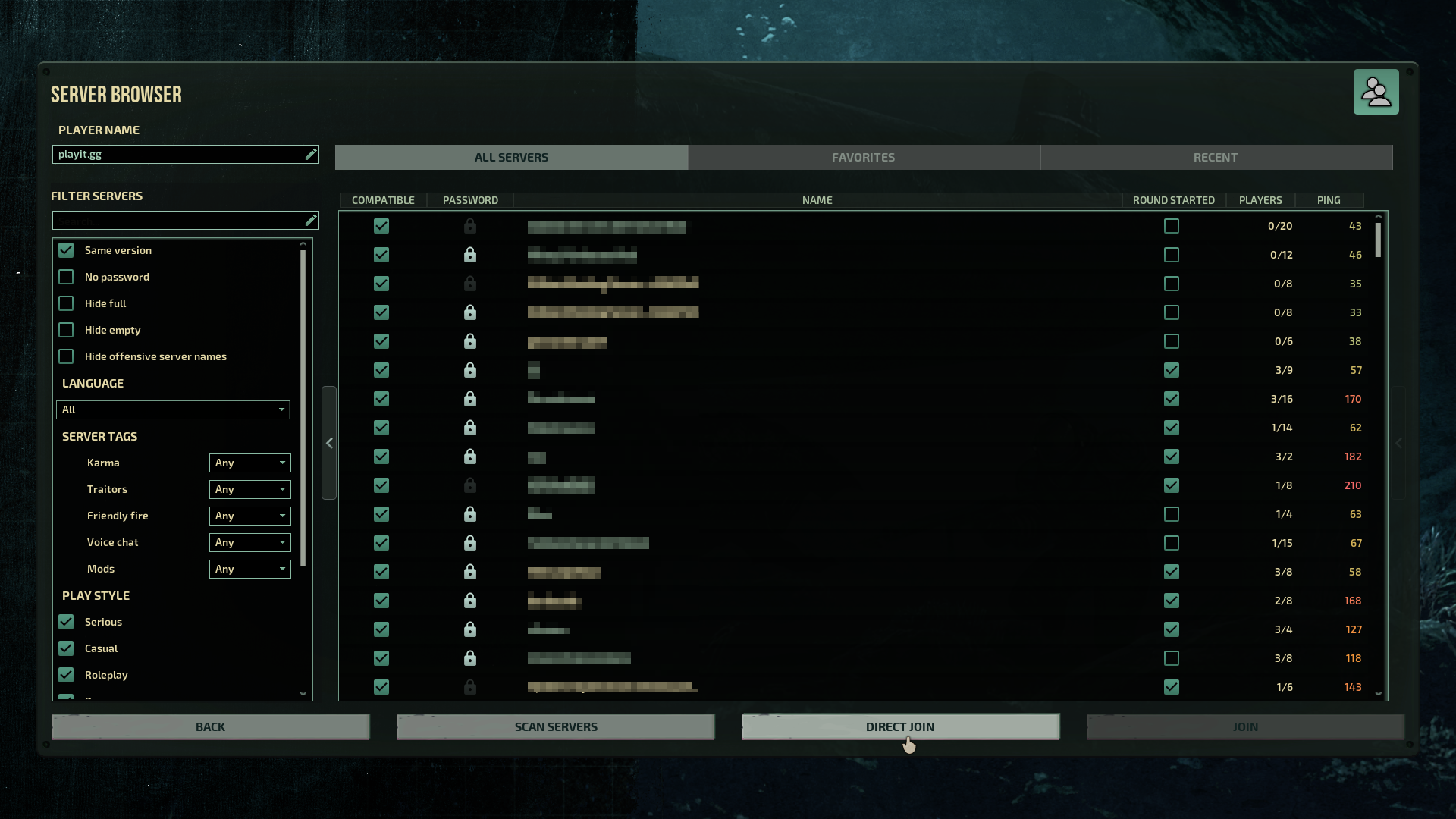
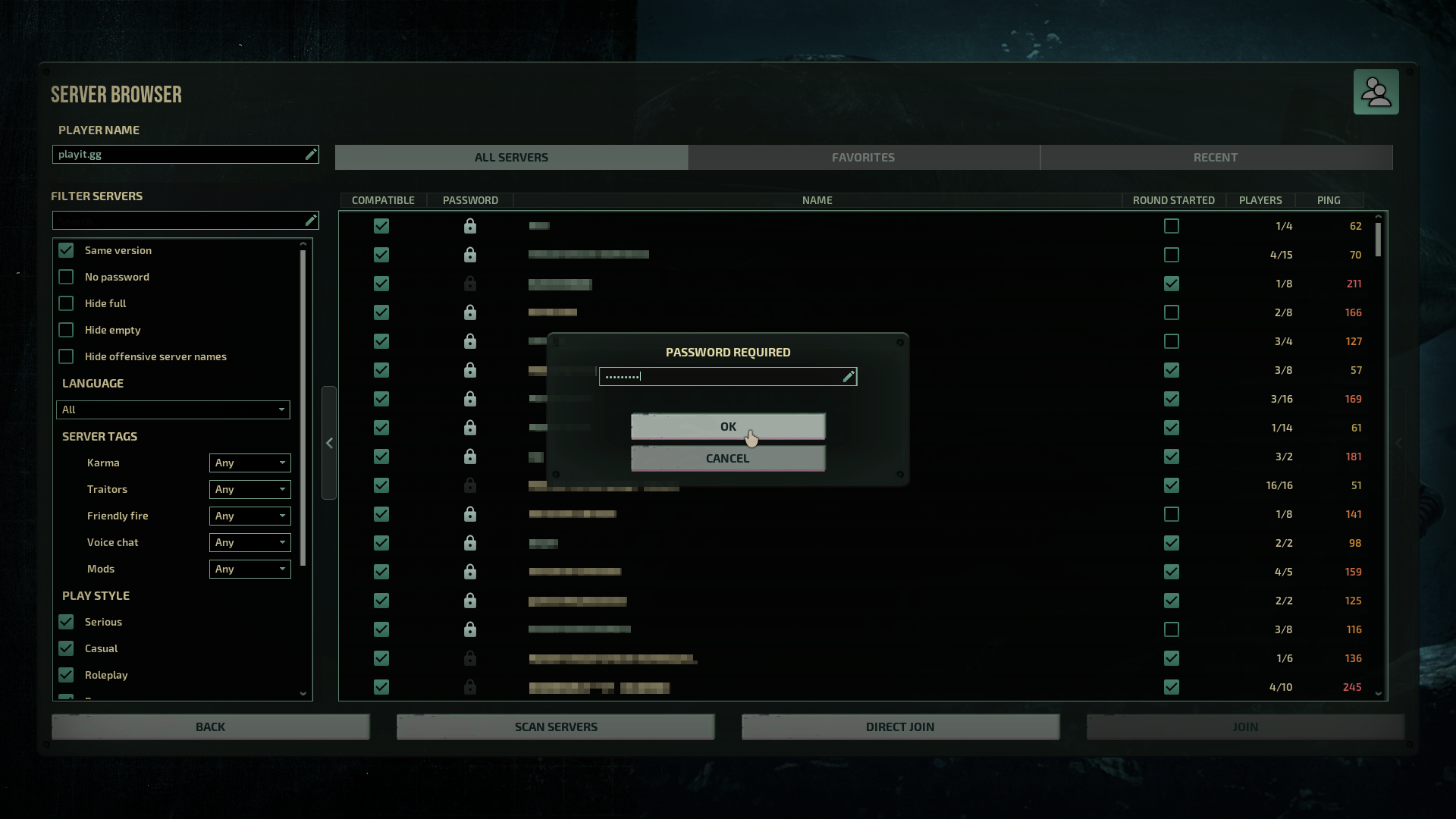
Go to Server Browser -> Direct Join and then paste in the IP address provided by playit.
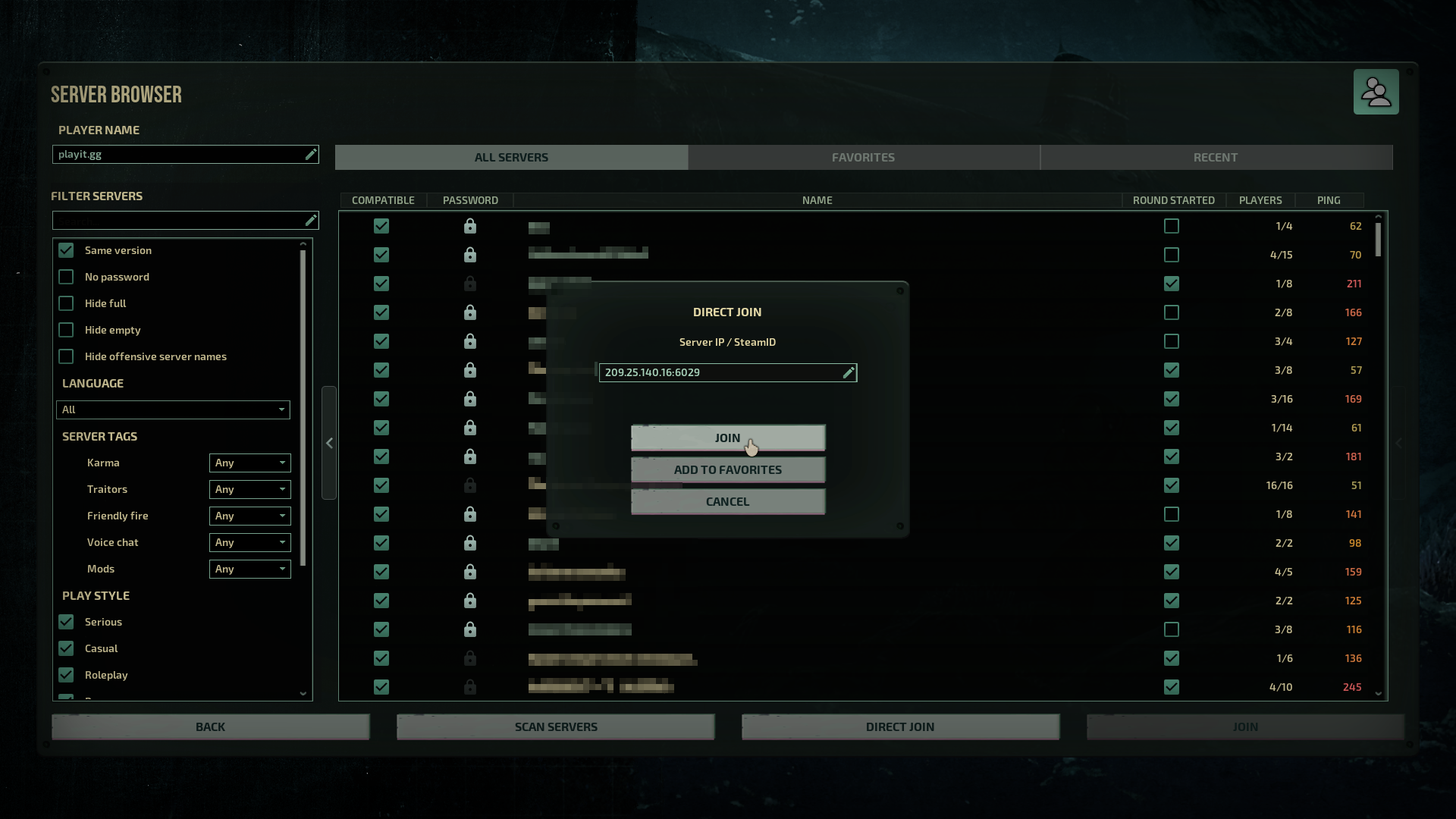
If you set a password in serversettings.xml, it will ask for the password.
Server settings
By default, all users are treated as a normal user. In order to change these settings, you must grant yourself admin permissions. Use giveperm <username> all
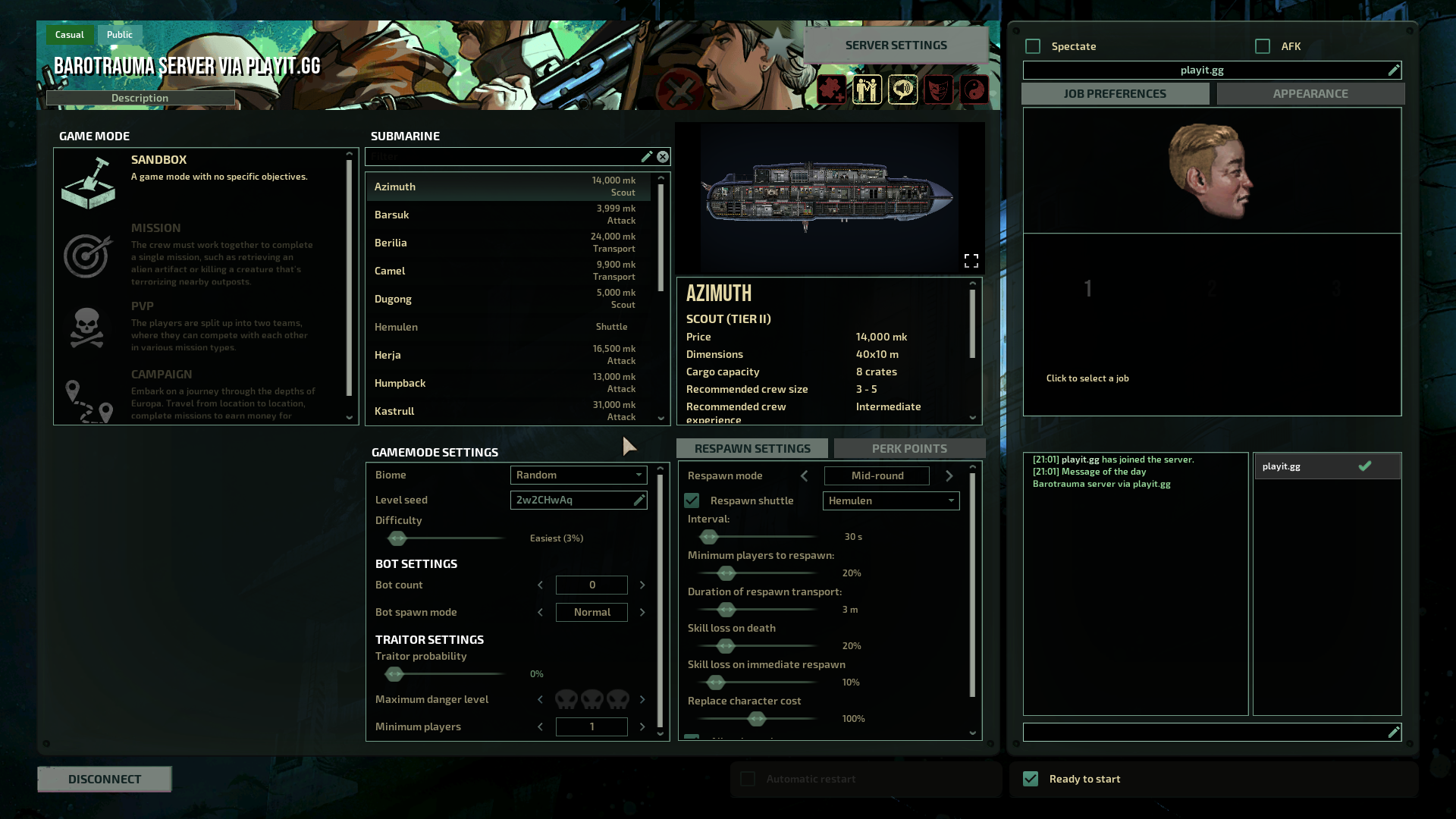
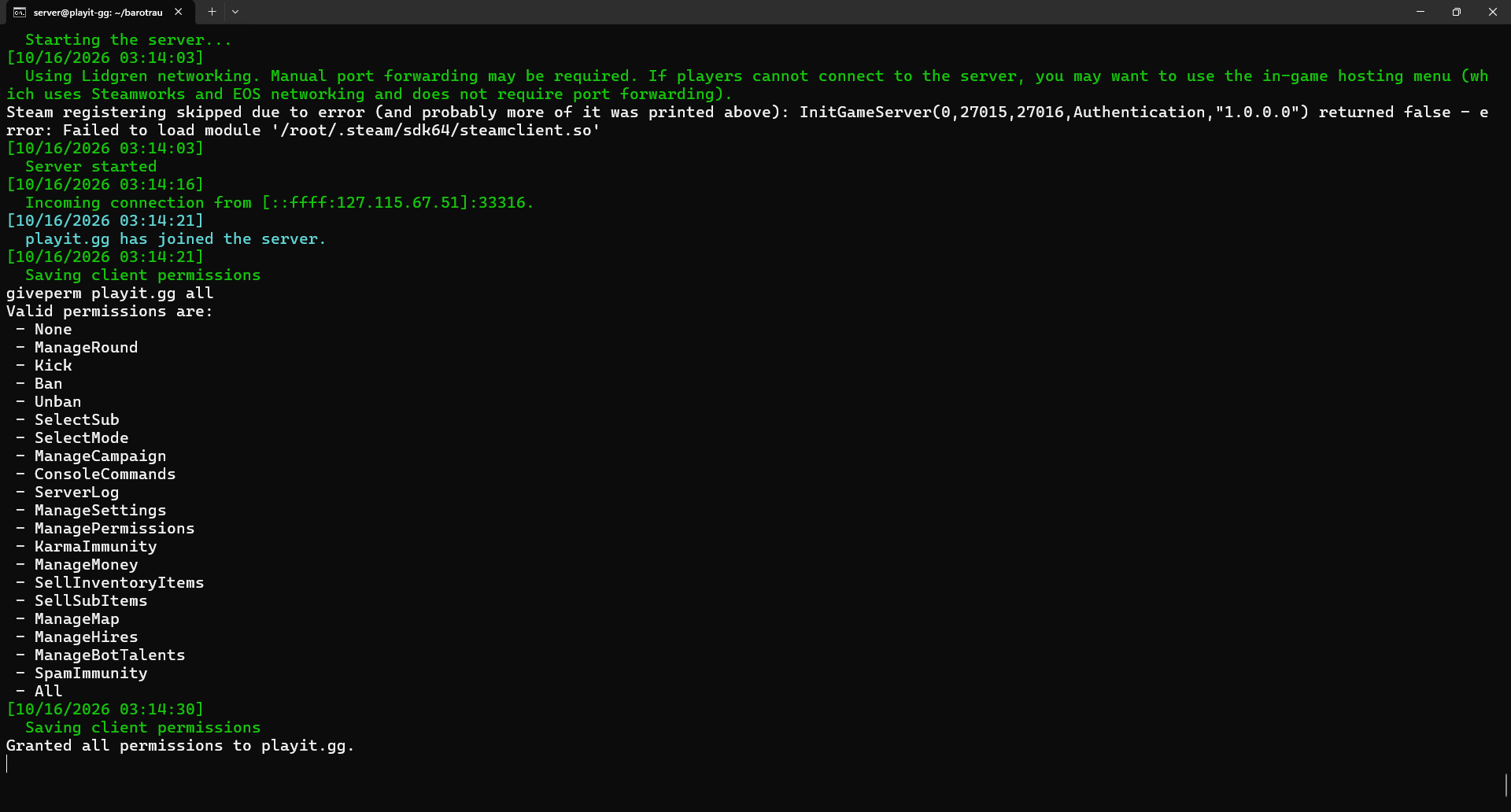
Once you grant yourself every permission, you are then able to change the mode, game settings, and other things.
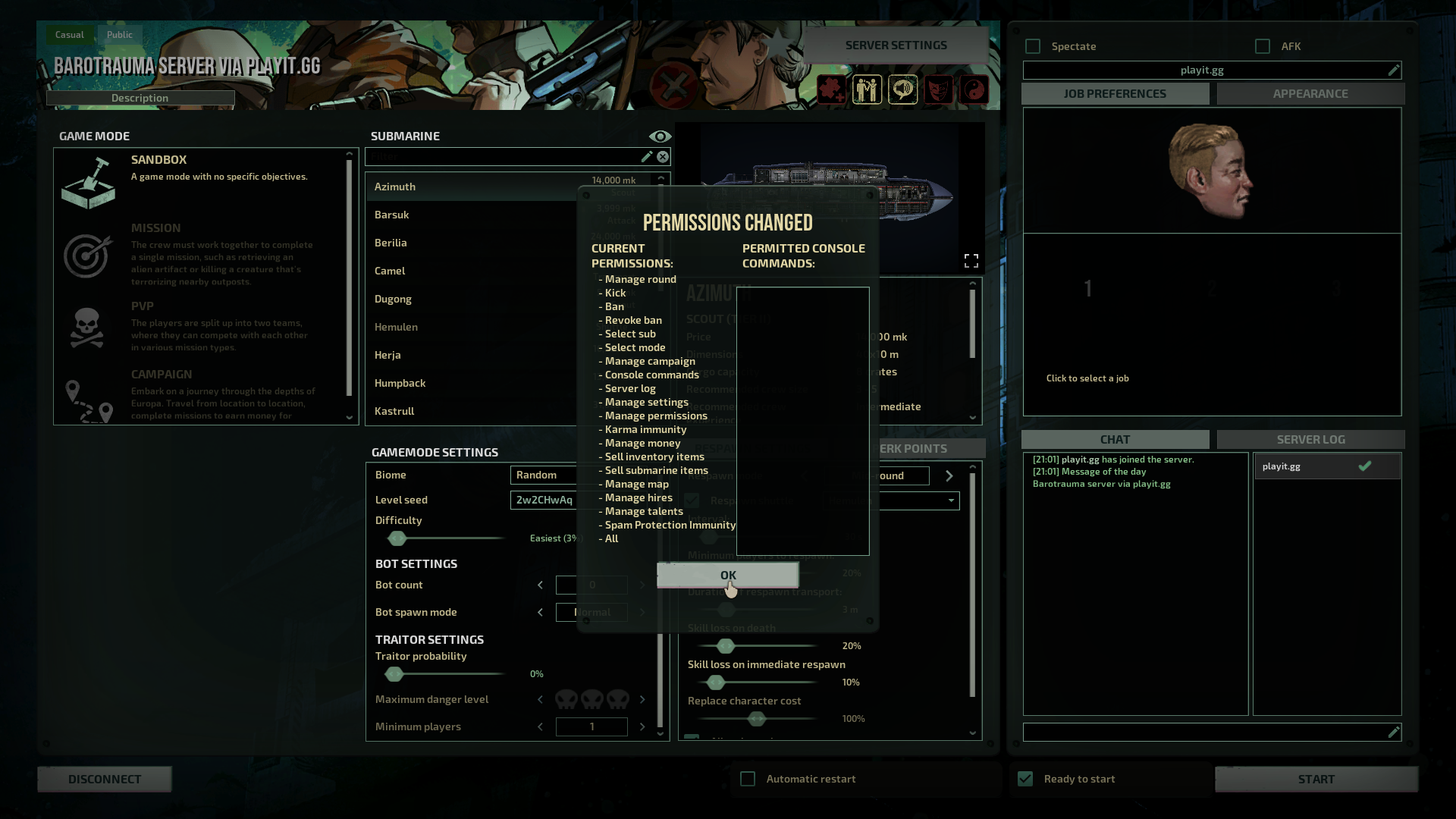
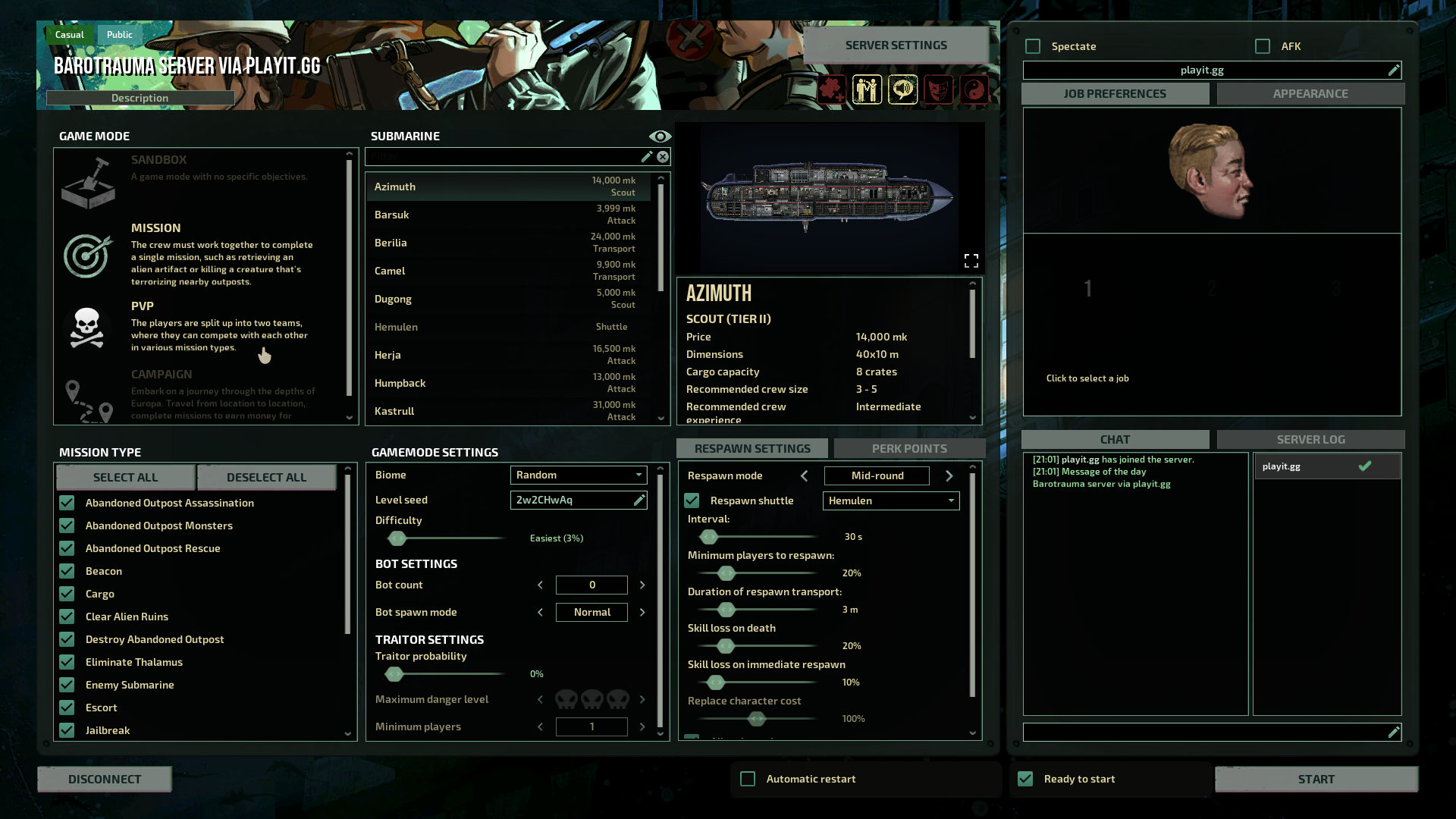
Starting the game
Once everyone in the lobby, you can then start the game.