This guide shows how to make Microsoft’s Bedrock Dedicated Server public with a playit Minecraft Bedrock (NetherNet) tunnel.
Bedrock Dedicated Server can’t connect to playit by itself. You’ll run a small free program called WaterdogPE next to it. Players connect to WaterdogPE through playit, and WaterdogPE passes them to your server.
Want Bedrock players to join a Java server? Follow Setting up Geyser with playit instead.
What you need
- Bedrock Dedicated Server - [minecraft.net]
- The latest WaterdogPE release (
Waterdog.jar) - [github.com] - Java 17 or newer, to run WaterdogPE - [adoptium.net]
- playit program version 1.1.0 or newer - [playit.gg]
Make two folders, one for the Bedrock server and one for WaterdogPE. Extract the Bedrock server ZIP into the first folder and put Waterdog.jar in the second.
1. Create the tunnel
Make sure the playit program is running, then go to Tunnels and click new tunnel.
- Give your tunnel a name.
- Choose Minecraft Bedrock (NetherNet) as the tunnel type.
- Tick the box to confirm NetherNet is experimental.
- Leave the other settings as they are and finish creating the tunnel.
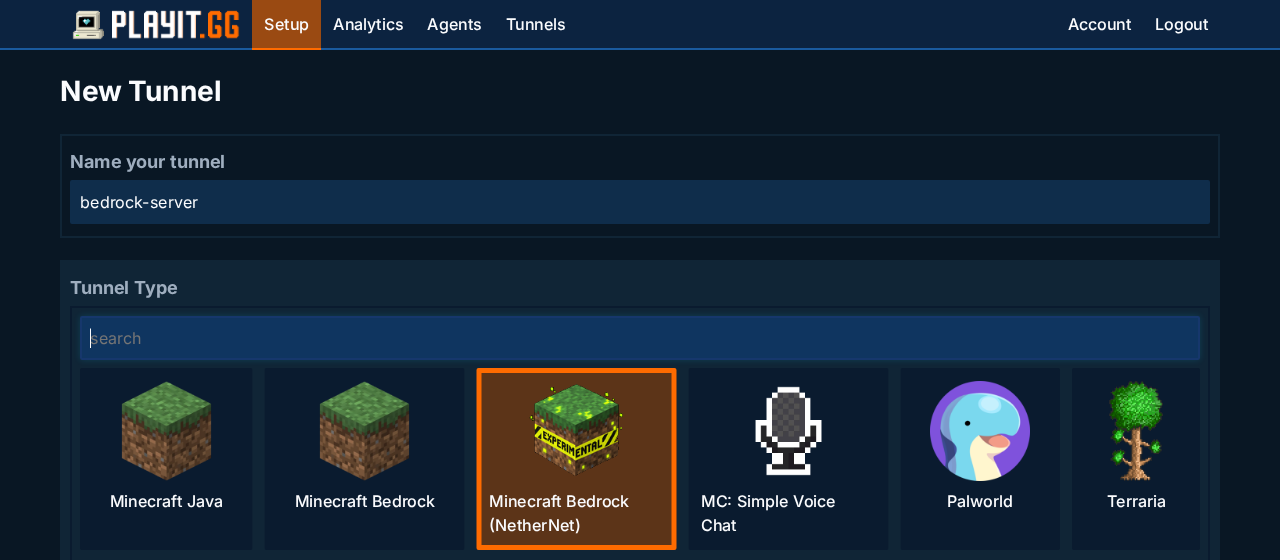
Make sure you pick Minecraft Bedrock (NetherNet), not Minecraft Bedrock.
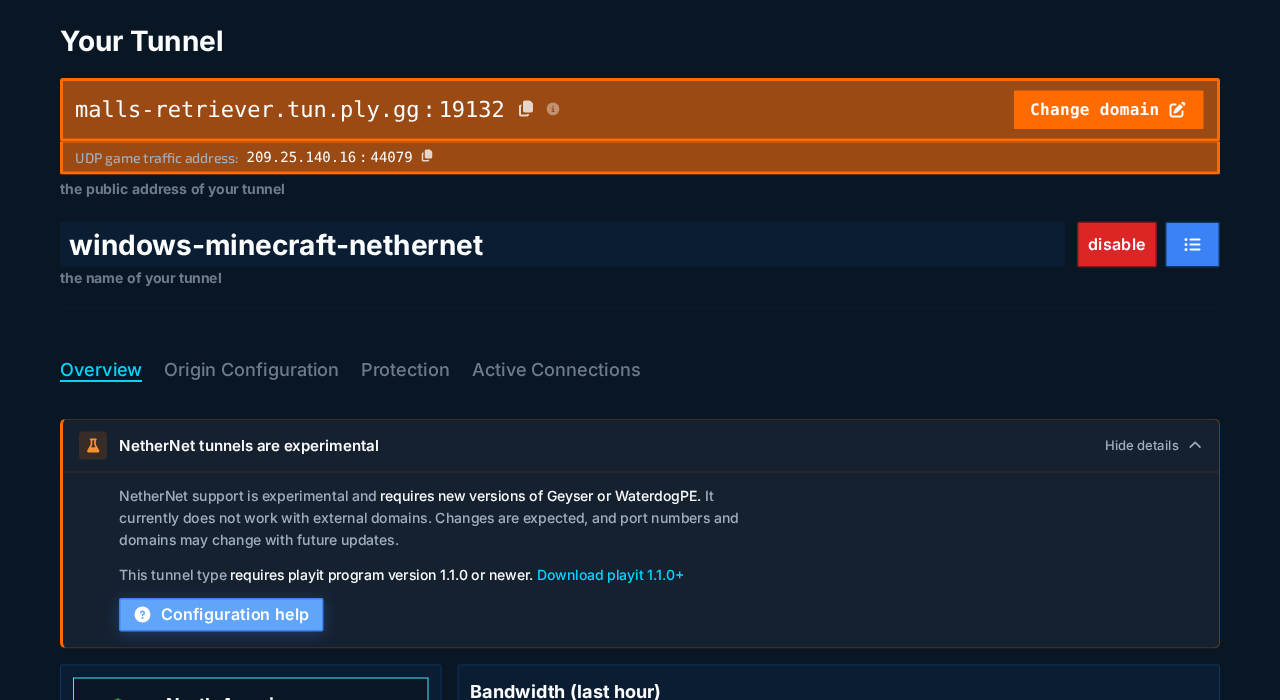
2. Open Configuration help
Open your new tunnel and click Configuration help, then select the WaterdogPE tab. You’ll copy two sets of settings from here.
3. Set up the Bedrock server
In the Bedrock server folder, open server.properties with a text editor like Notepad.
Click Copy on the server.properties box in Configuration help. For each copied line, find the line with the same name in your file and replace it. Save the file.
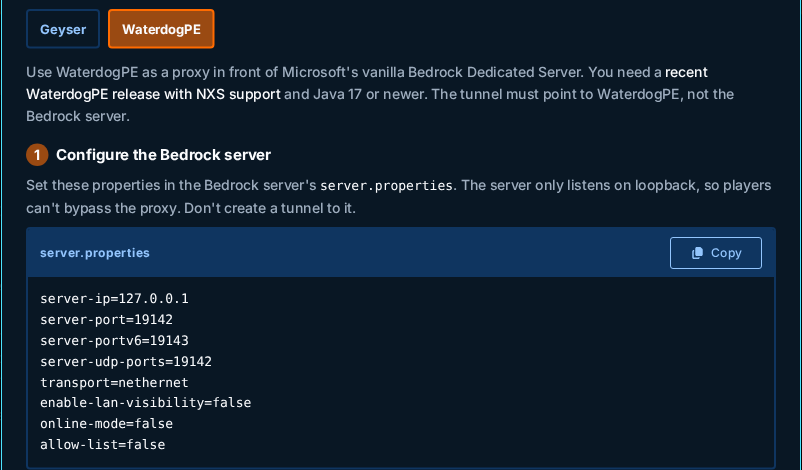
These settings move your Bedrock server to port 19142 so WaterdogPE can use 19132. They also make sure players can only join through WaterdogPE.
Start the server by running bedrock_server.exe and wait for Server started in the console. Leave it running.
4. Set up WaterdogPE
In the WaterdogPE folder, create a file called start.bat with this inside:
java -Xms256M -Xmx1G -jar Waterdog.jar
pause
Double-click start.bat. WaterdogPE will create a config.yml file. Type end in the WaterdogPE window and press Enter to stop it.
Click Copy on the config.yml box in Configuration help. The copied settings already include your tunnel’s private token.
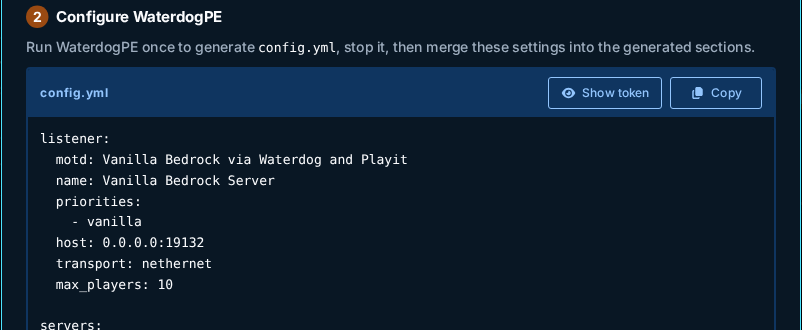
Keep your token private. Anyone with it can attach a server to your tunnel.
Open WaterdogPE’s config.yml. Each top-level section in the copied settings (listener:, servers:, nethernet:) should have a matching section in your file. Replace each of those sections with the copied version, or add it at the end of the file if it’s missing. Then set online_mode, upstream_encryption, use_login_extras, and enable_edu_features to the copied values. Leave everything else alone.
Keep the spaces at the start of each line exactly as they are in the copied settings. YAML files break if the spacing is wrong.
5. Start WaterdogPE
Save config.yml and double-click start.bat again. Look for this line in the WaterdogPE window:
Registered with the external signaling service
If you see it, WaterdogPE is connected to playit.
Keep the playit program, the Bedrock server, and WaterdogPE running while people play.
6. Join from Minecraft Bedrock
In Minecraft Bedrock, go to Play > Servers > Add Server and enter:
- Server Address: your tunnel address, for example
malls-retriever.tun.ply.gg - Port:
19132
Share the same address and port with your friends.
Troubleshooting
WaterdogPE never prints “Registered with the external signaling service”
- Make sure the playit program is running and is version 1.1.0 or newer.
- Make sure you are on the latest WaterdogPE release.
- Copy the settings from Configuration help again and check that the token was pasted correctly.
Players connect but can’t get into the world
- Make sure the Bedrock server is running.
- Check that
server.propertieshasserver-port=19142andonline-mode=false. - Check that
servers:in WaterdogPE’sconfig.ymlpoints to127.0.0.1:19142. - Update both the Bedrock server and WaterdogPE to the latest version.
The Bedrock server closes with an allow-list error
Set allow-list=false in server.properties. WaterdogPE still checks that every player is signed in to Xbox.
Players get a “Door” error
- Check that your tunnel type is Minecraft Bedrock (NetherNet).
- Make sure WaterdogPE is running and players are using port
19132.
For more about WaterdogPE, see the WaterdogPE documentation .