Setting Everything Up
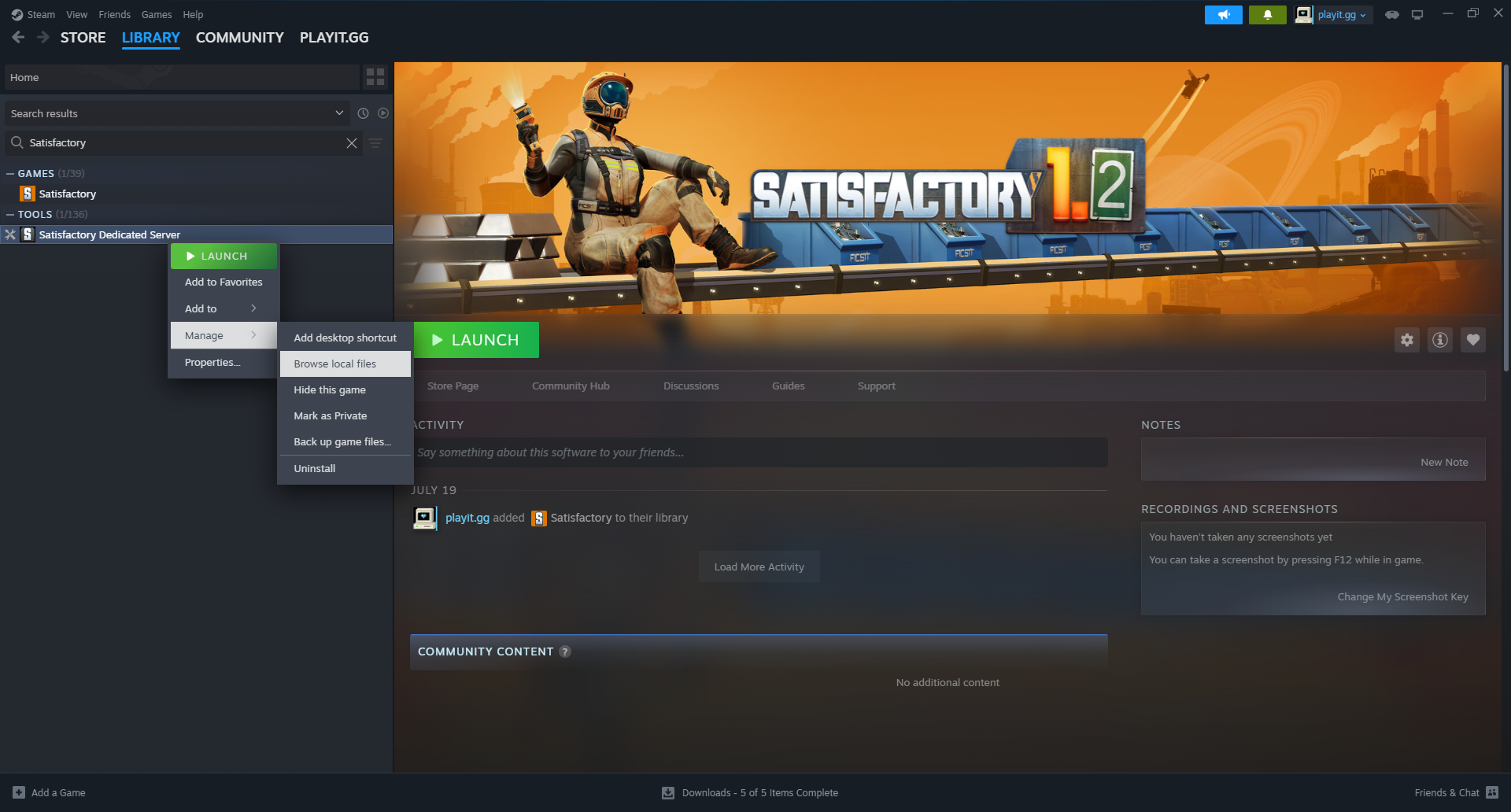
Download the Satisfactory Dedicated Server from Steam.
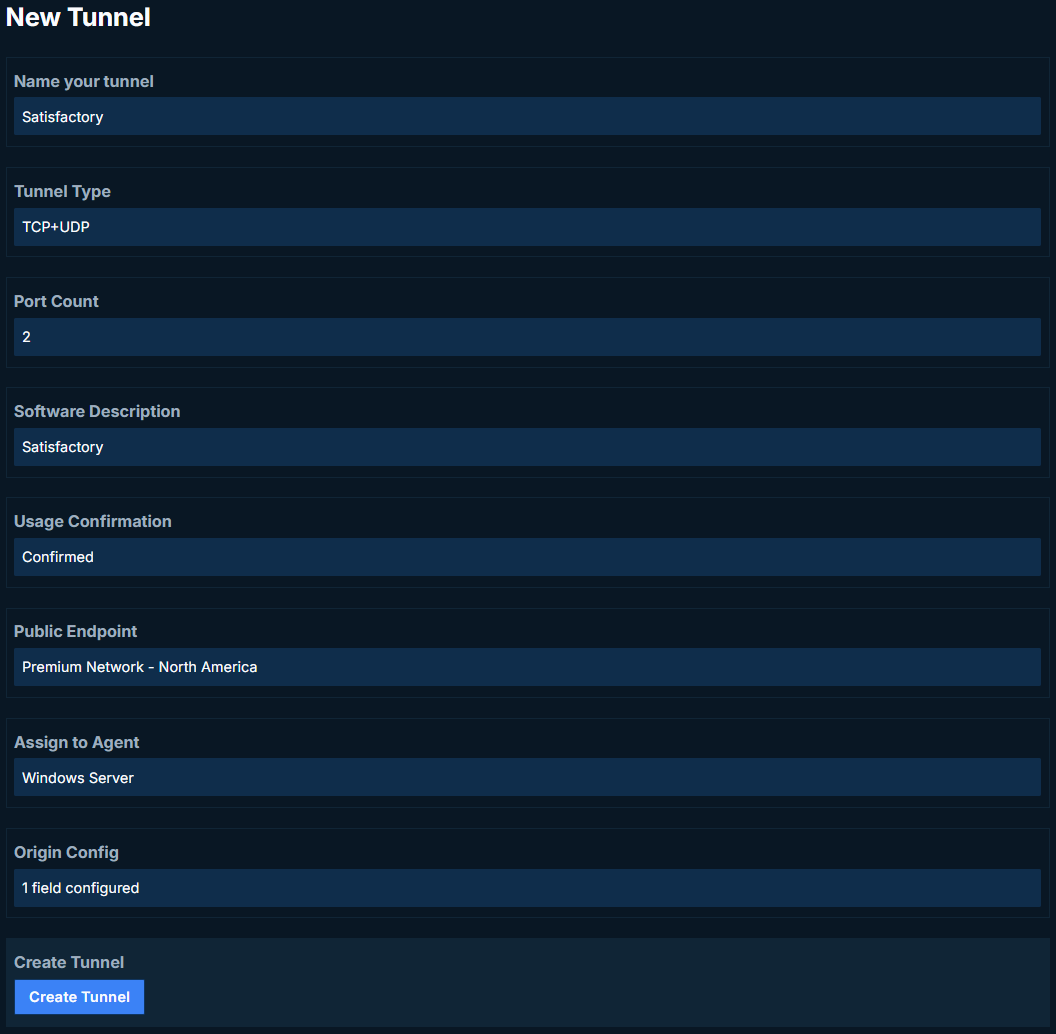
Create the tunnel
- Type: TCP/UDP
- Port Count: 2
- Local IP: 127.0.0.1
- Port: NULL
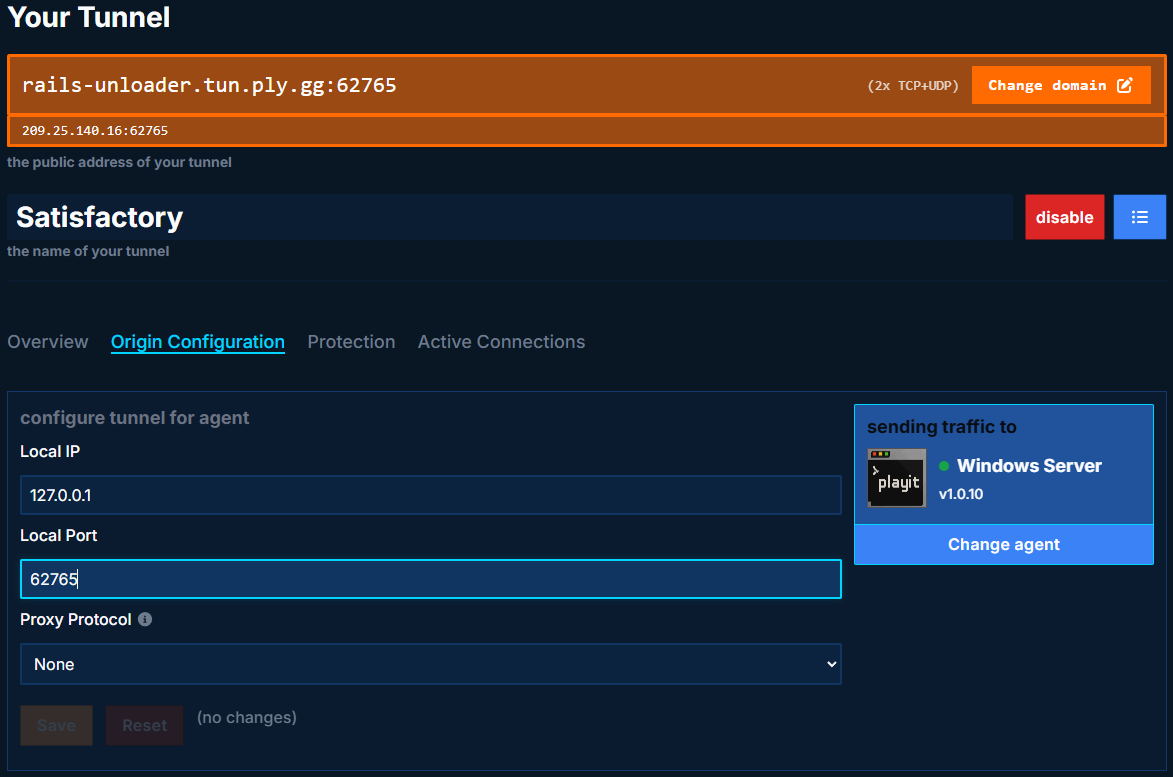
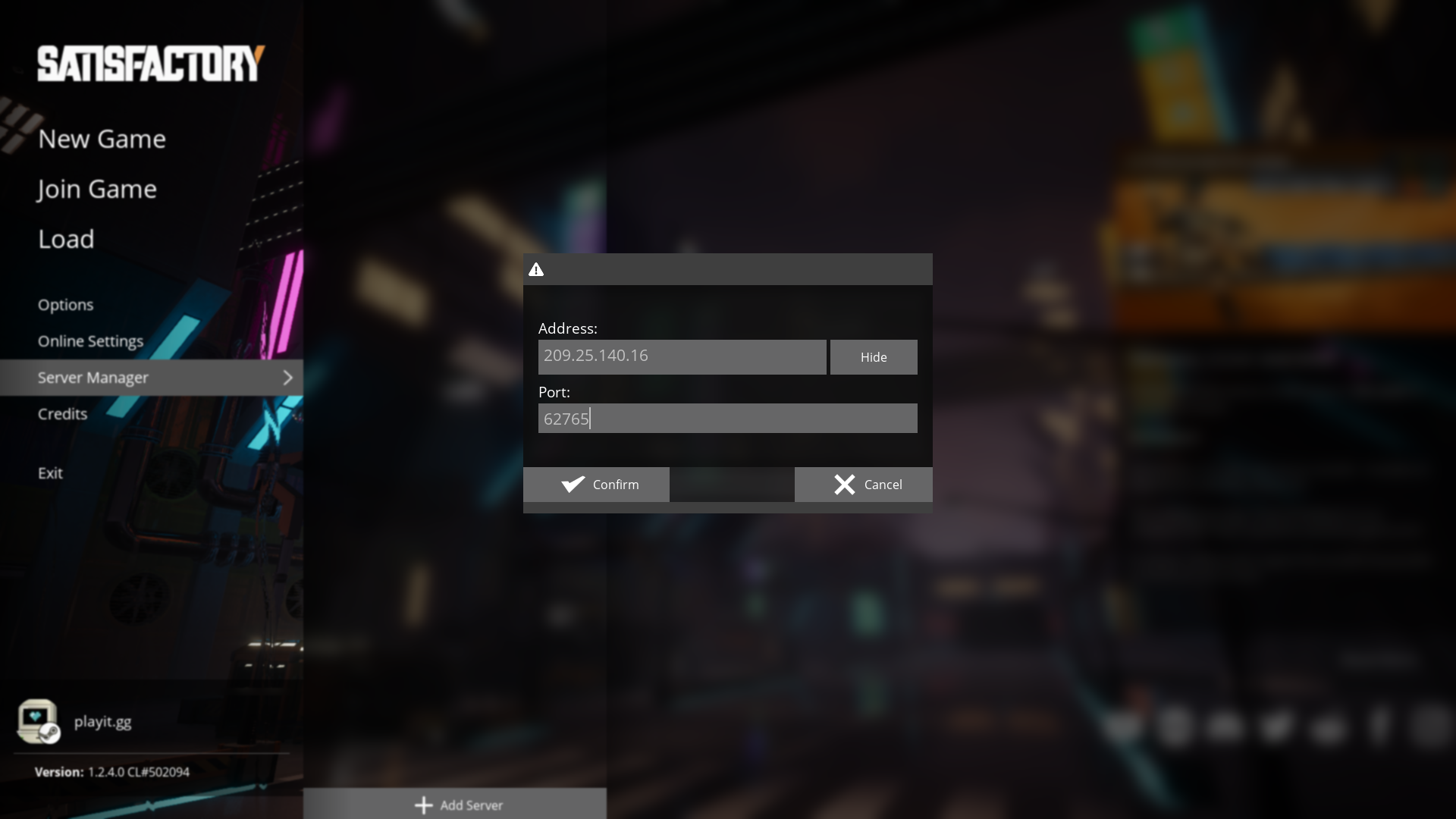
We will match the tunnel’s local port to match the public one assigned by playit. Our public port is 62765, so we’ll set the local port to 62765. See Origin Configuration.
Creating the startup file
In order to be able to join the server, you have to tell it which ports to bind.
Set -port to the public port of the tunnel, and -ReliablePort to the public port +1.
Basically, the second port is one number higher than what’s shown on the website. For example, our public port is 62765, so our reliable port is 62766.
Create a new batch file, and set -port and -ReliablePort to match your tunnel’s information. We’ve called our file start.bat and placed it inside of the server’s root directory, where FactoryServer.exe is located.
This is the command we will put inside of the file:
FactoryServer.exe -log -port=62765 -ReliablePort=62766
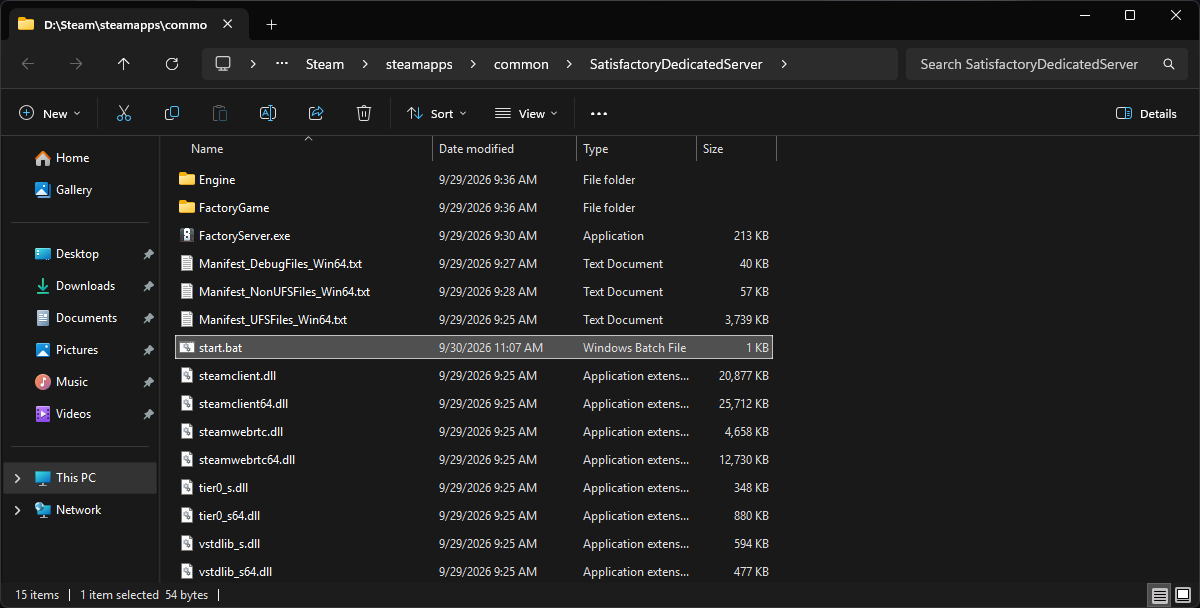
Claiming the server
When you create a new Satisfactory server, it creates a new unique identity using a self-signed certificate. Enter the tunnel information provided by playit like this:
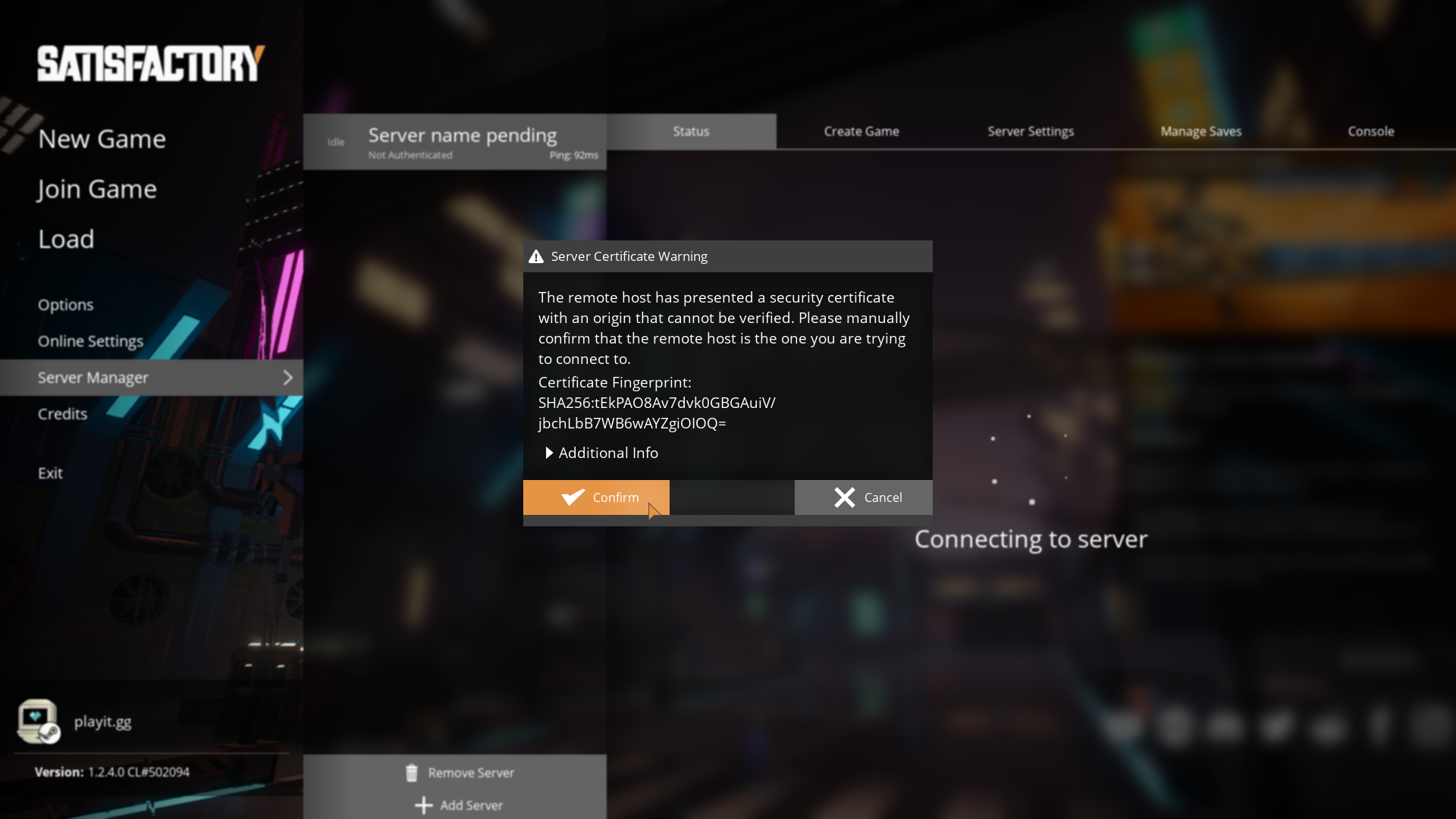
You may get a warning, saying that the origin cannot be verified. It is safe to confirm this. If you are still unsure, make sure the identity matches the one printed in the console.
LogServer: Warning: ==============================================================
LogServer: Warning: Server API is running using a Self-Signed Certificate.
[2026.09.30-15.14.19:947][  0]LogServer: Warning: ==============================================================
LogServer: Warning: To verify the certificate integrity on the Client, make sure the following Fingerprint matches with the Client one:
[2026.09.30-15.14.19:949][  0]LogServer: Warning: Server API is running using a Self-Signed Certificate.
LogServer: Warning: SHA256:tEkPAO8Av7dvk0GBGAuiV/jbchLbB7WB6wAYZgiOIOQ=
[2026.09.30-15.14.19:949][  0]LogServer: Warning: To verify the certificate integrity on the Client, make sure the following Fingerprint matches with the Client one:
LogServer: Warning: ==============================================================
[2026.09.30-15.14.19:949][  0]LogServer: Warning: SHA256:tEkPAO8Av7dvk0GBGAuiV/jbchLbB7WB6wAYZgiOIOQ=
[2026.09.30-15.14.19:949][  0]LogServer: Warning: ==============================================================
Server configuration
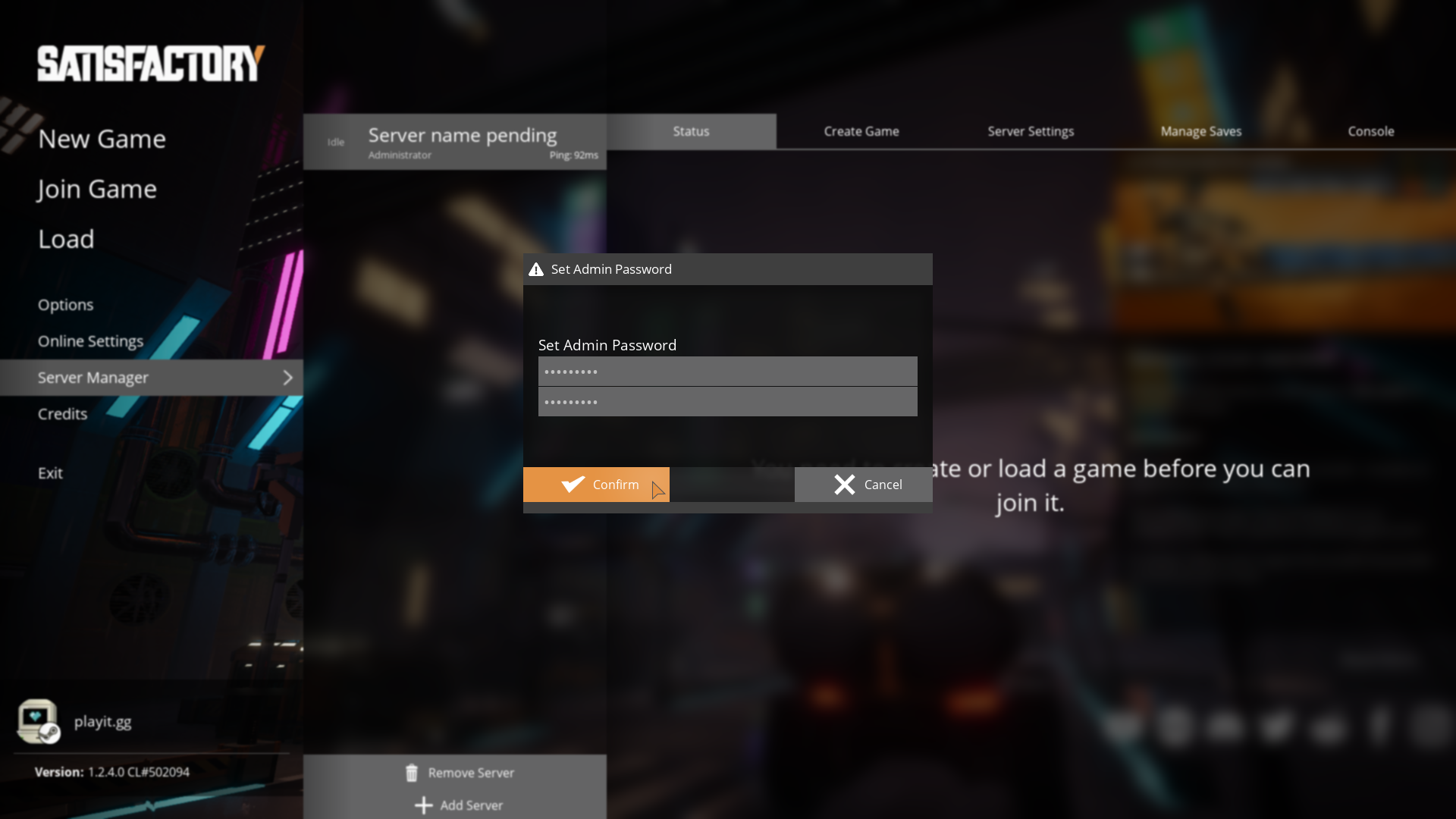
After you claim the server, you can then set an admin password. This can be done inside of the game, as a newly created server.
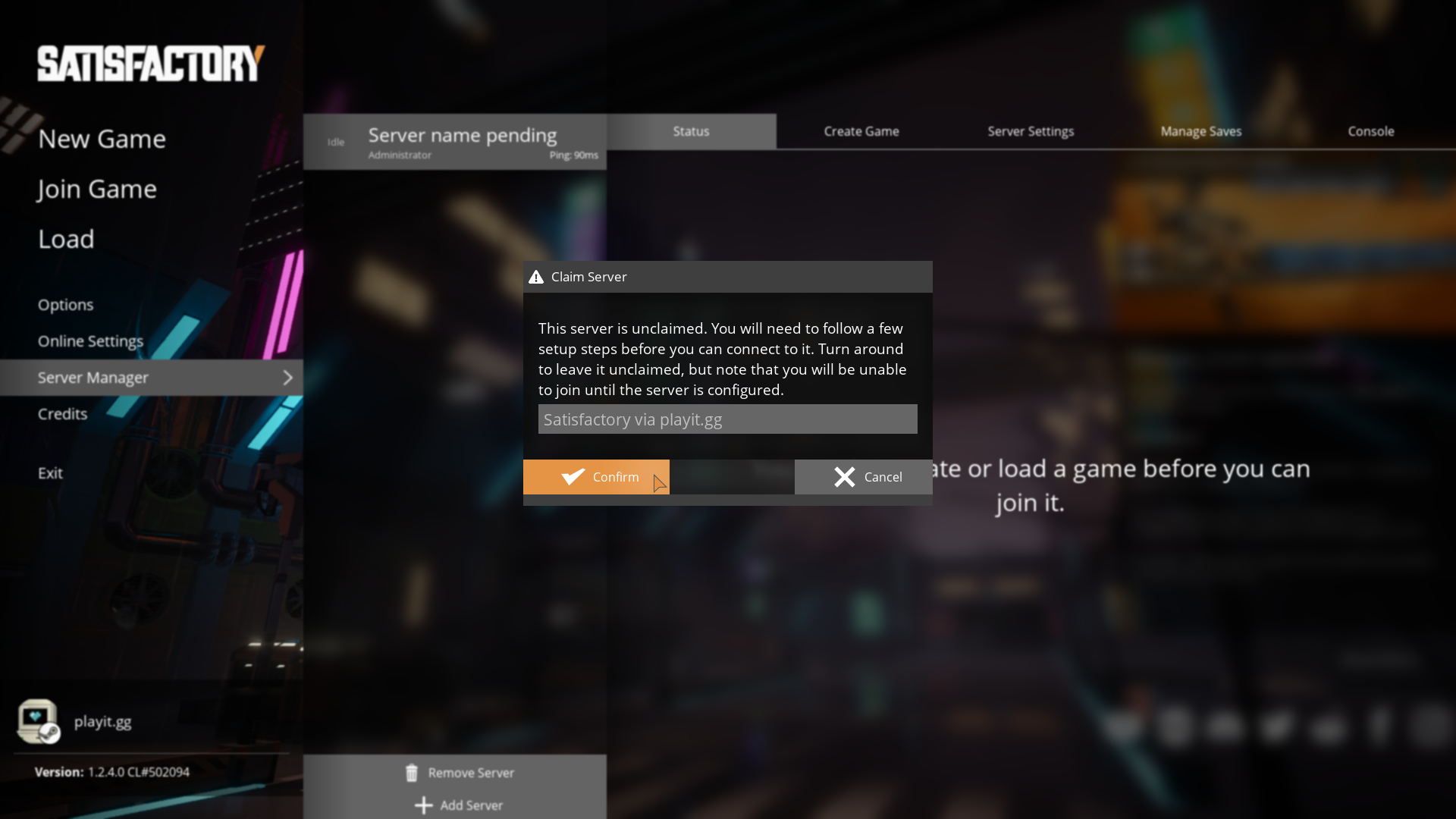
Set an admin password, and click Confirm
Choose whether or not you want to send crash logs to Coffee Stain. This is not required, this is up to you.
Creating a game
Once you’re here, you can configure the game as you see fit.
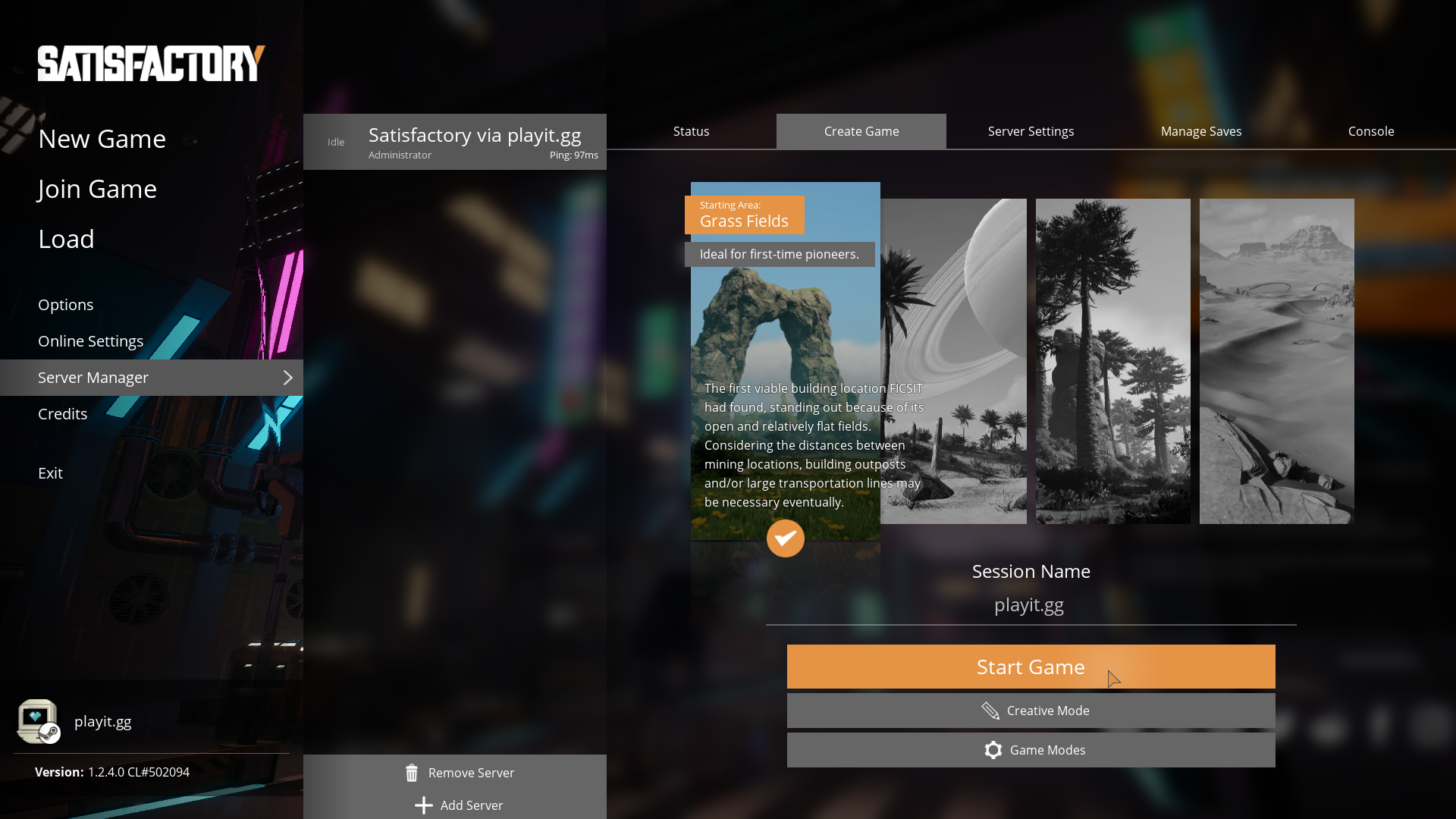
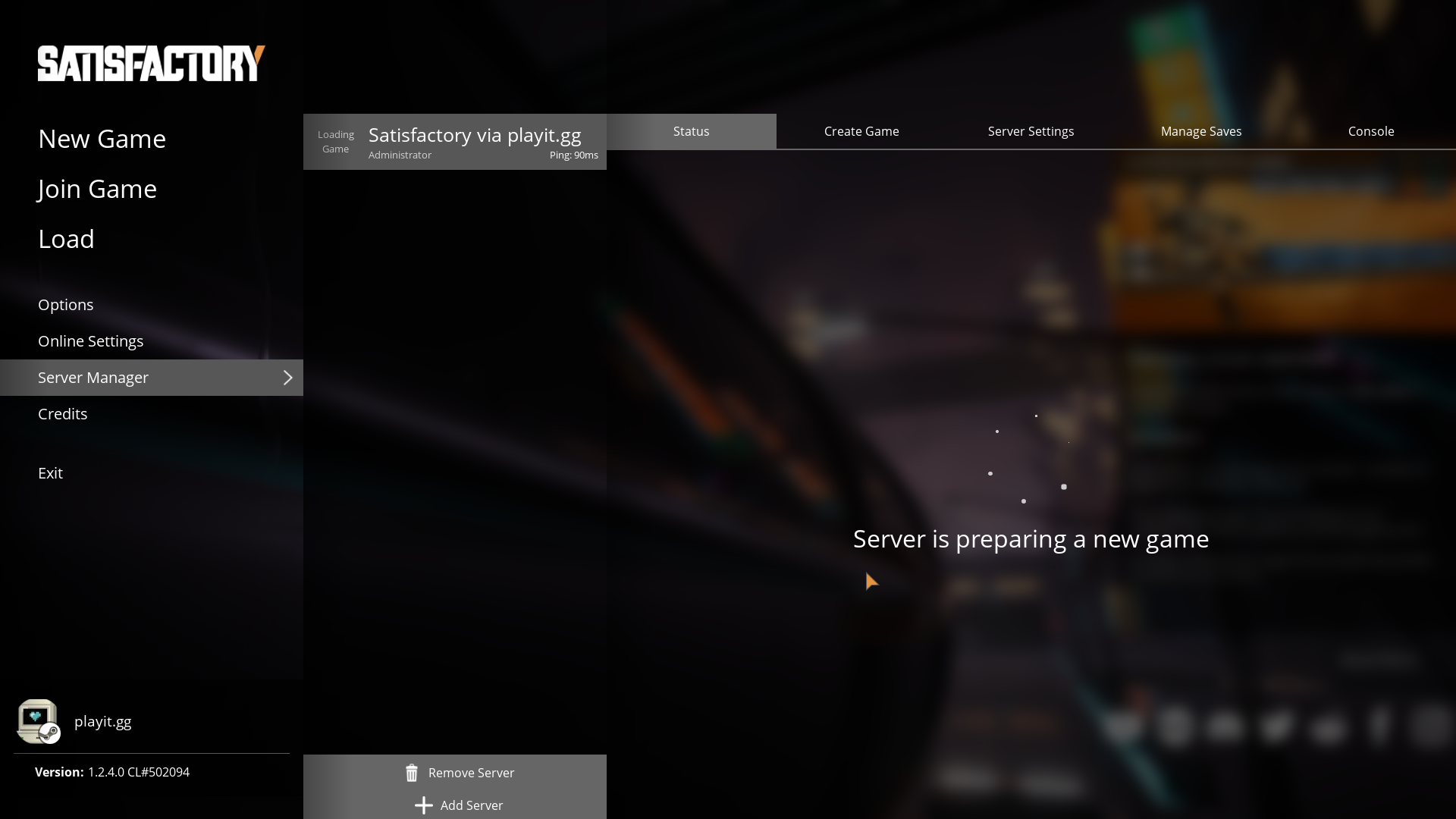
Here, you can set the server name, game rules, and other things.
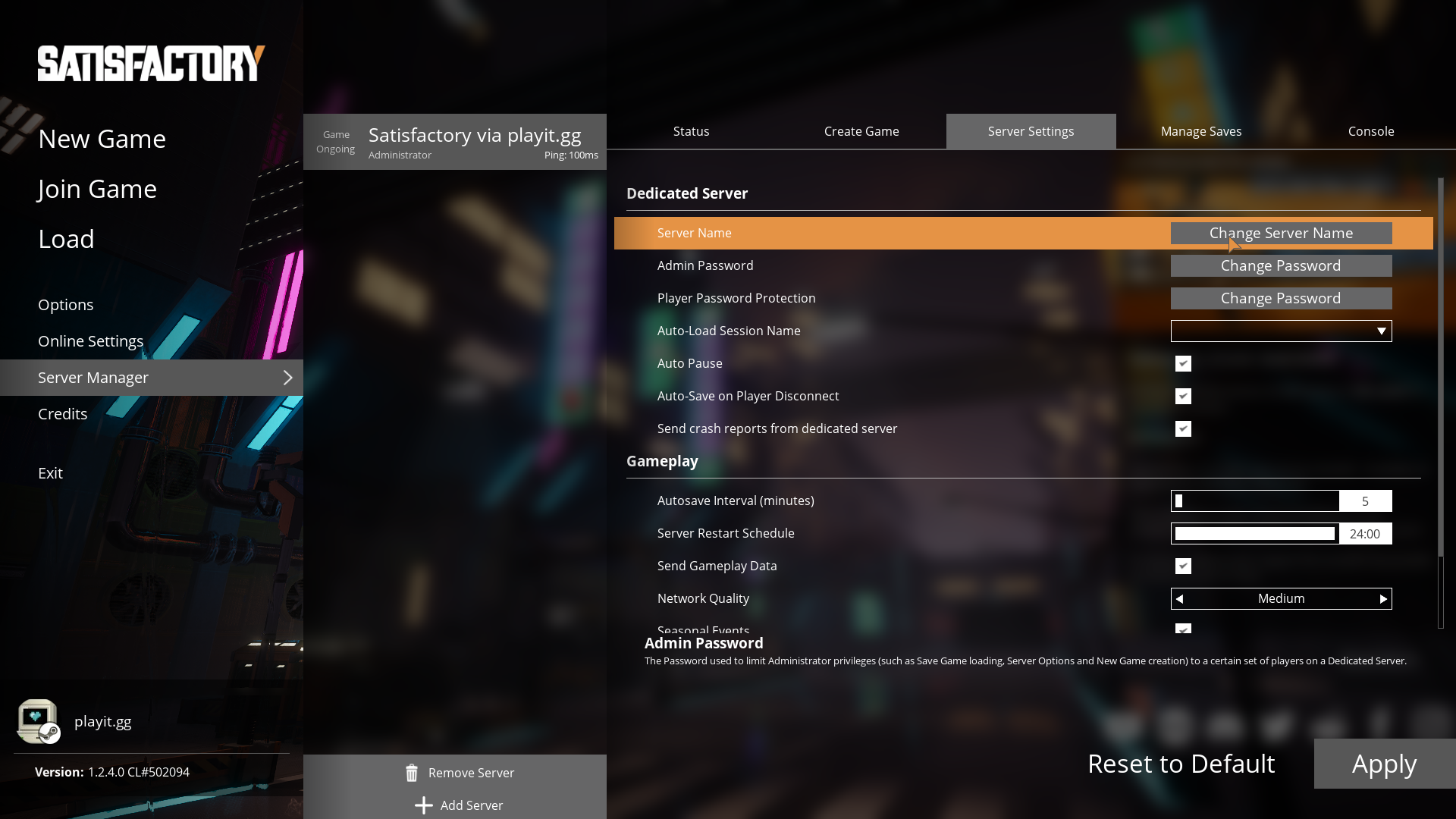
Now you have a fully functional game server, running through playit.gg!